Frequently Asked Questions
1 Explanation of PBX error encoding
Error encoding |
Chinese explanation |
Example |
|---|---|---|
404 |
This extension is not found, callout is prohibited |
Example: Agent A registers a sip phone, and then sets the agent status to disabled in the agent editing page. After saving, delete the agent. If the telephone registers, call out the outside line before the voice prompt is heard. |
410 |
Defective steering type or steering target |
Example: Did does not set the steering, the incoming call route is incoming, and the incoming call route can match, but the steering is not set, and the prompt tone cannot be heard, but the 410/did is displayed in the call record. The overflow steering of the seat group has a category but no target, and a voice prompt will be heard. |
411 |
The steering target configuration was not found (usually, the steering target was deleted) |
Example: Did turned to ivr, and then deleted the ivr. You will hear a voice prompt when you call in from outside. |
415 |
The route is not matched in the outgoing call file |
Example: No outgoing call file is set; or the set outgoing call file route cannot match |
416 |
The specified outgoing call relay was not found |
Example: No relay is set in the outgoing call file |
417 |
Failed to obtain IVR voice list media file |
Example: Set a media file in the ivr voice menu, then delete the set media file, and turned to the ivr. You will hear a voice prompt when an external call is in. |
418 |
The client bound by the relay is inconsistent with the client bound by the DID |
The realm of did shall prevail |
419 |
The incoming call does not match any Client and cannot be turned on |
Example: The incoming DID and relay are not bound to the client |
420 |
Numbers in DNC list, no calls are allowed |
Example: Add the customer number to the prohibited call list, and the call will be out of the seat, and there will be a voice prompt. |
421 |
DID has been disabled |
|
422 |
Meet the system call limit rule and prohibit outgoing calls |
Example: On the root-call limit page, add call limits, and there will be voice prompts when the agent calls out. |
423 |
The default incoming route does not set the steering target |
Example: When did not set the steering, and if the existing incoming route cannot match, the default incoming route does not set the steering, and the voice prompts for incoming calls from outside. |
424 |
Listening/Secret Word/Strong insertion object is not in the call |
Example: 9010 is not on the phone, 9003 enter *909010, and there will be a voice prompt |
425 |
This seat only allows click calls (double call) and direct calls are prohibited |
Example: Open on the agent editing page: Only clicking calls is allowed, and there will be voice prompts when the agent directly calls out. |
426 |
No permission to use function keys to perform monitoring related operations, the monitoring target is not within the monitoring range |
Example: The agent does not have the privilege of monitoring or the monitored party is not within the monitoring range of the agent. The agent will hear a voice prompt when monitoring. |
427 |
It is not allowed to monitor and operate related to yourself when you are on your own extension. |
Example: The seat monitor, secret words, and forced yourself to listen to voice prompts |
430 |
The target call was not found in any node/*85 does not process the number |
Example: The seats in the same department are not in the ringing state. If the seats are entered *85, there will be a voice prompt. |
432 |
The target is not ringing |
Example: In 2006, enter “*859010:” to pick up the call from the 9010 seat, but 9010 is in idle state, and will be prompted by voice. |
434 |
Function keys to pick up calls from different departments |
Example: In 2006, enter “*859010:” to pick up the call from the 9010 seat, but 9010 is in idle state, and will be prompted by voice. |
460 |
The residing call does not exist |
Example: The SIP node corresponding to the call cannot be found, and the data of this system node will not be reported if it does not exist. |
461 |
Same as above |
|
462 |
The call that was picked up does not exist |
Example: The corresponding SIP node for the call cannot be found, and the data of this system node will not be reported if it does not exist. |
2 Call type in call history
Call Type |
|---|
Call in |
Call out |
Call on both ends |
Pre-dial |
Inside |
Voice notification |
Play the sound and receive the number |
Forced insertion |
Secret Word |
monitor |
Grab the pickup |
Residence |
Three-party call |
3 The reason for hanging up in the call record and its way of occurrence
Reason for hanging up |
Cause |
|---|---|
Connect |
Call connected |
No answer |
Call in to the seat that is not online |
Call failed |
The outgoing error number (the outgoing call file cannot match) |
blacklist |
Set this number in the blacklist to make a call |
Call limit |
The system has set a limit on the number of calls. When the limit is reached, it will be prompted. |
Emergency number blocking |
No call to emergency numbers 110 118 119 |
Being called |
The caller is on the phone or refuses to call, and it will show that he is being called. |
Called to reject |
|
Caller hangs up in advance |
Call out the wrong number, but the number can match the corresponding outgoing file |
Caller hangs up in advance |
Deleted, there may be residual system |
Caller hangs up in advance |
|
Call timeout |
Call (in and out) to the online agent or client, but the agent or client does not connect until the timeout is suspended |
Queue waiting for exit |
When a call is in the queue, the client hangs up when waiting in the queue for the agent to answer the call. |
Queue timeout |
When the call is in the queue, the client waits in the queue for the agent to answer the call until the queue timeout and the call is hung up. |
Empty queues are blocked |
Set in the queue, call in is not allowed when there is no agent check-in |
Empty queue overflow |
|
Queue queue overflow |
When the call incoming queue calls exceed the maximum queues set by the agent group, the call is suspended |
Identification errors |
|
Shut down |
|
Shutdown |
|
other |
|
Call error |
|
Transfer |
The call was disconnected due to transfer |
Grab the pickup |
Call answer |
block |
4 seat events
Party |
Action |
describe |
reason |
|---|---|---|---|
agent |
ringing |
The seat enters the ringing state |
|
answer |
The agent enters the reply state (the incident in which the agent receives the phone call) |
||
pause |
The seat is suspended |
①Default pause does not display ②Select the reason for pause to display the pause name ③ Group leader pause: SP |
|
ACW |
After entering the conversation |
||
hangup |
The call was hung up |
||
hangupPause |
Resuming suspension |
Call in to the seat group, the seat is checked in but the phone is not online: NoR |
|
hangupACW |
After hanging up, enter |
auto |
|
onhold |
Call keep |
||
resume |
Call recovery |
||
unpause |
Cancel the pause |
||
exitACW |
After the end |
||
login |
Check in to the seat group |
||
Logoff |
Check out the seat group |
① The agent check-in is not checked out, just close the browser page or disconnect the network –> The agent browser timed out –checkws.② The agent login timed out –checkonline |
|
QPause |
Queue pause |
||
QUnpause |
Cancel queue pause |
||
confJoin |
Join the tripartite meeting |
Joining three parties will generate an event of joining at two seats. |
|
confLeave |
Leave the tripartite meeting |
There will be two seats in the three parties |
|
setDefaultGroup |
Set the default agent group, this function has been cancelled, but the event log is retained |
||
Abandon |
① The queue is not answered, waiting for timeout or the caller is hung up. |
①JOINEMPTY (This prompt will be displayed when the empty queue is not enabled in the queue). |
|
joinQueue |
Calls entered the queue |
||
call |
create |
Start a new call (call establishment) |
|
answer |
Call answer (when the call is established between both parties, there will be an answer event) |
||
hangup |
Call hangs up |
||
Caller |
incoming |
There is an incoming call |
|
hangup |
Calling off |
||
callee |
ringing |
Called ring |
|
answer |
Called answer (event established by the called answer) |
||
hangup |
Called to be hung up |
||
Conversation |
hangup |
Call hangs up |
|
Consult |
ringing |
Start calling the consulted party |
|
ivr |
start |
Enter IVR (you will only appear if you dial ivr in the inside line) |
|
userInput |
IVR key operation |
||
end |
Exit IVR |
5 Calculation formulas and statistical scope of each data in the statistical report
Statistical items |
category |
Calculation method |
Rounding method |
|---|---|---|---|
Seat details |
Average call duration |
Average call duration incoming calls = Total incoming calls / Incoming access |
Round downward, for example, 11/2=5.5 for the last 5 seconds |
Total call duration |
Total call duration = call |
Directly sort according to the call situation |
|
Average call duration |
Average call duration for outgoing calls = Total call duration for outgoing calls / Total number of outgoing calls |
||
Total length of exhalation |
Total length of call = ringing + call |
||
Average length of retention |
Average hold time = hold time / number of hold times |
Average holding time = holding time / number of holding times Round downward, for example, 7/2=3.5 The last holding time is 3 |
|
Seat summary |
Average length of retention |
Average hold time = hold time / number of hold times |
Round downward, for example, 7/2=3.5, last hold time 3 |
Time after the conversation |
Call in to the seat group, and the seat will enter after hang up the call |
Directly sort out the situation after the call |
|
Check-in time |
Duration of check-in to the seat group |
Directly sort by check-in time |
|
Call duration = ringing + call |
Directly sort by dialing time |
||
Seat group details |
Incoming call access rate |
Incoming call access rate = incoming call throughput / total incoming call times multiplied by 100 |
Leave the two decimal places, round it up, 1/3*100%=33.33% |
Average call duration |
Average call duration incoming calls = Total incoming calls / Total incoming calls |
Take the integer downward, 11/2=5.5 takes 5 |
|
Total call duration |
Total call duration = call |
||
Outgoing call rate |
Outgoing call rate = outgoing call volume / total outgoing call volume multiplied by 100 |
Leave the two decimal places, round it up, 1/3*100%=33.33% |
|
Average call duration |
Average call duration for outgoing calls = Total call duration for outgoing calls / Total number of outgoing calls |
Take the integer downward, 240/9=26.66 takes 26 |
|
Total call duration |
Total call duration = call |
||
Average length of retention |
Average hold time = hold time / number of hold times |
Take the integer downward, 116/15=7.73 takes 7 |
|
Agent group summary |
Incoming call access rate |
Incoming call access rate = incoming call throughput / total incoming call times multiplied by 100 |
Leave the two decimal places, round it up, 7/9*100%=77.78% |
6 Examples of the percentage of seats calculated in the advanced pre-dial setting
Advanced settings are shown in the figure
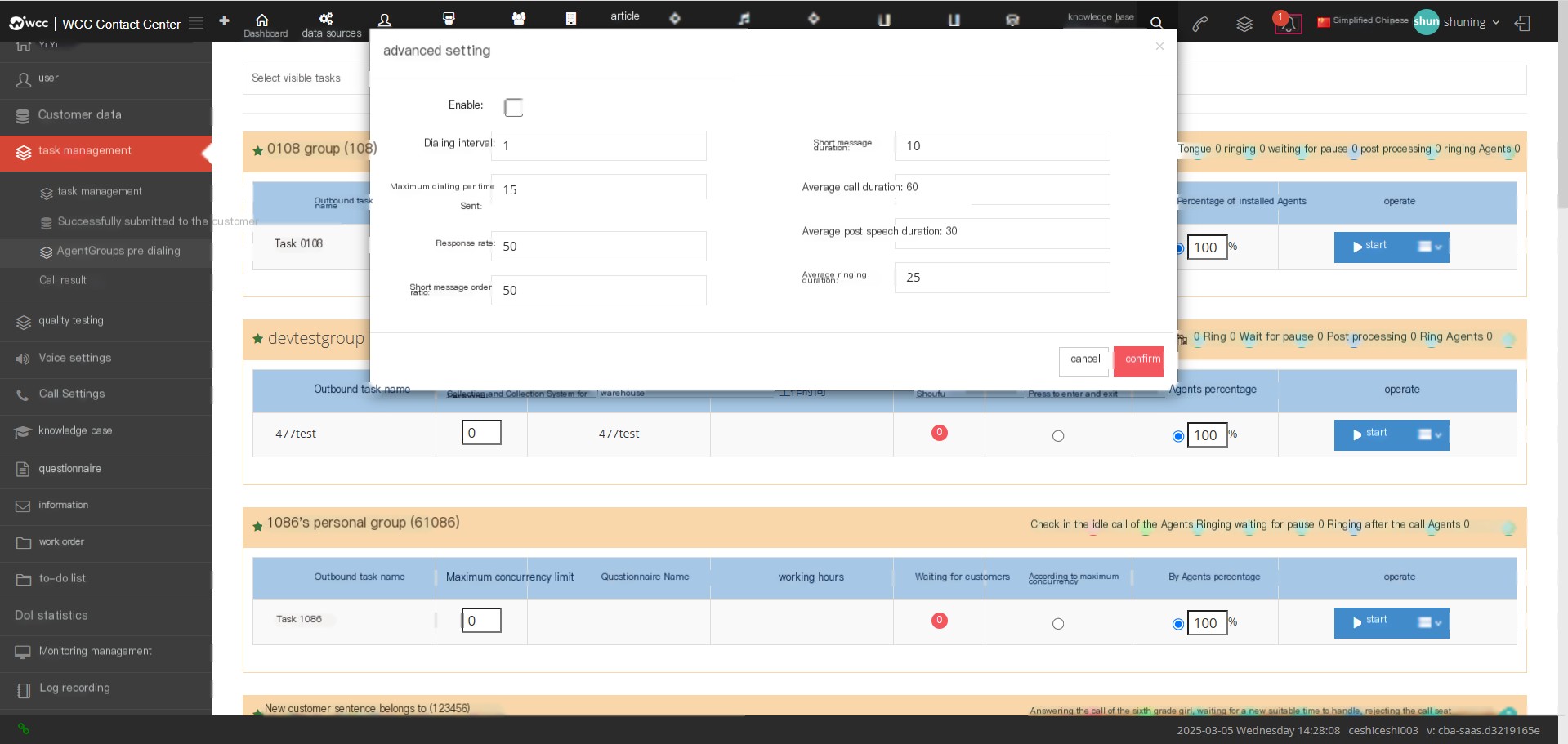
List the situation
Total number of seats online 10
Seat 1: Call duration 20s
Seat 2: Call duration 120s (greater than the average call duration 60s [talkend])
Seat 3: Call duration 4s (less than short-term call time 10s * short-term call rate 50% = 5s [shorttalk])
Seat 4: 60s after conversation (30s after average conversation)
Seat 5: 30s after the conversation
Other seats are idle seats [idleagent]
Client 1: Ringing, ringing 15S, it has been connected, but no seat has been connected
Client 2: Ringing is turned on for 20s (less than the average ringing time is 25s【ringing】)
Available Agent = idleAgent + talkEnd + acwEnd + shortTalk - waiting
Predict the number of available seats next time = 5 idle seats + 2 seats (at this time the system judges that the call is about to be hung up) + 4 seats (more than the average time after the system predicts that the seat will leave the conversation) + 3 seats (the short call is about to end) - Customer 1=5+1+1+1-1=7
Dial number = (Agent × Percentage of seats)/Response rate - ringing
Number of dials = (7*150%)/50%-1=20
The system predicts the number of next dials before each wheel pre-dial starts.
allRinging = all ringing numbers
waiting = number of calls that the client has been connected but not received by the agent
allAnswered = Number of calls to be answered by the agent
ringing = Number of calls whose ringing duration is less than the average ringing duration
talkEnd = Number of calls whose call duration is greater than the average call duration
shortTalk = Call duration is less than short call order × short call order ratio
maxChannel = task maximum dial limit
idleAgent = idle seat in the queue
Available Agent = idleAgent + talkEnd + acwEnd + shortTalk - waiting
Dial number = (Agent × Percentage of seats)/Response rate - ringing
The number of calls initiated each time is: (the number of dials calculated by the formula), (the maximum concurrency per dial), (the maximum number of tasks concurrency - allRinging -waiting - allAnswered) The minimum value of the three
7 What preparations do you need to make before the seat makes an outgoing call?
①First establish a relay, display number, and outgoing call file at the root level
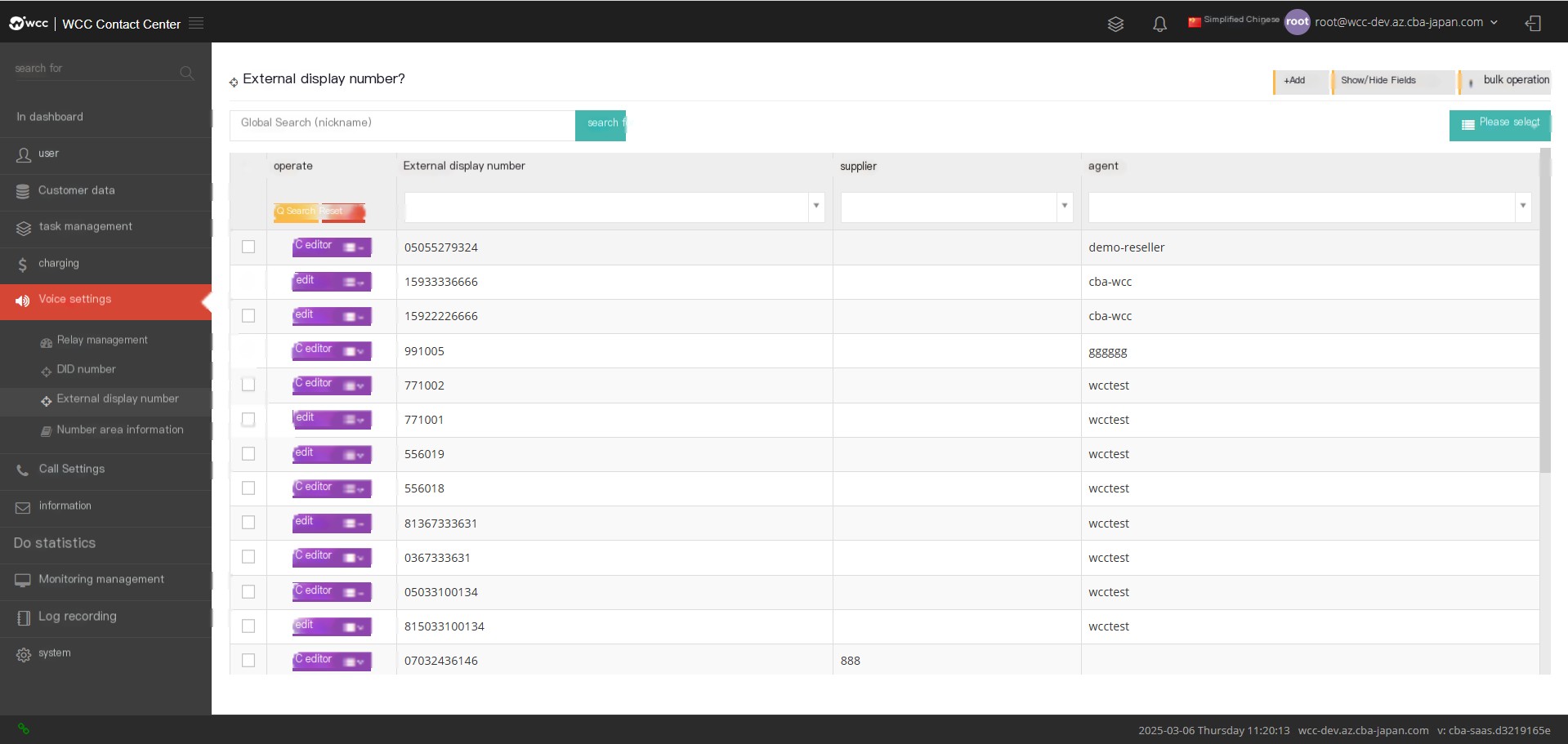
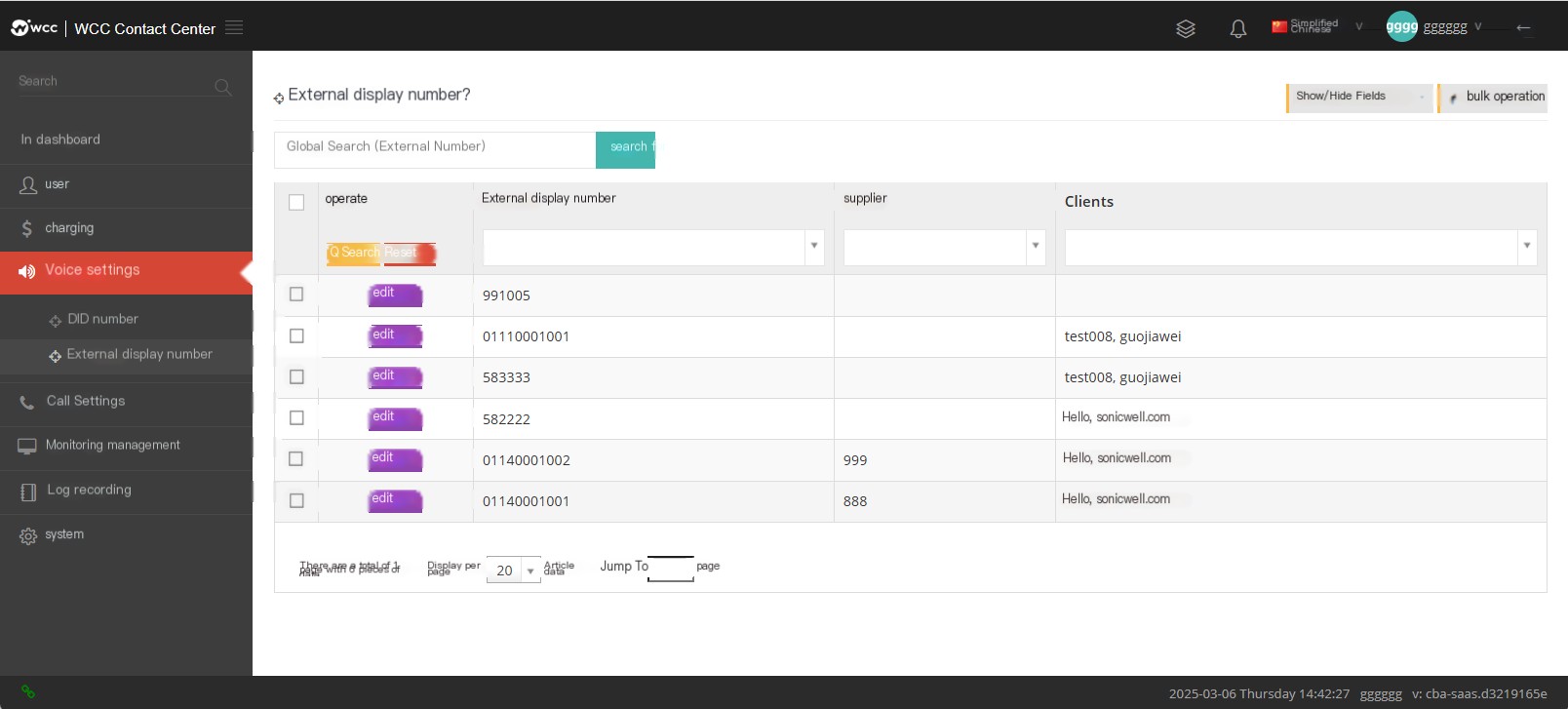
First assign the display number to the affiliated agent, and the agent assigns it to the client for use
Create outbound call files and assign outbound call files to client
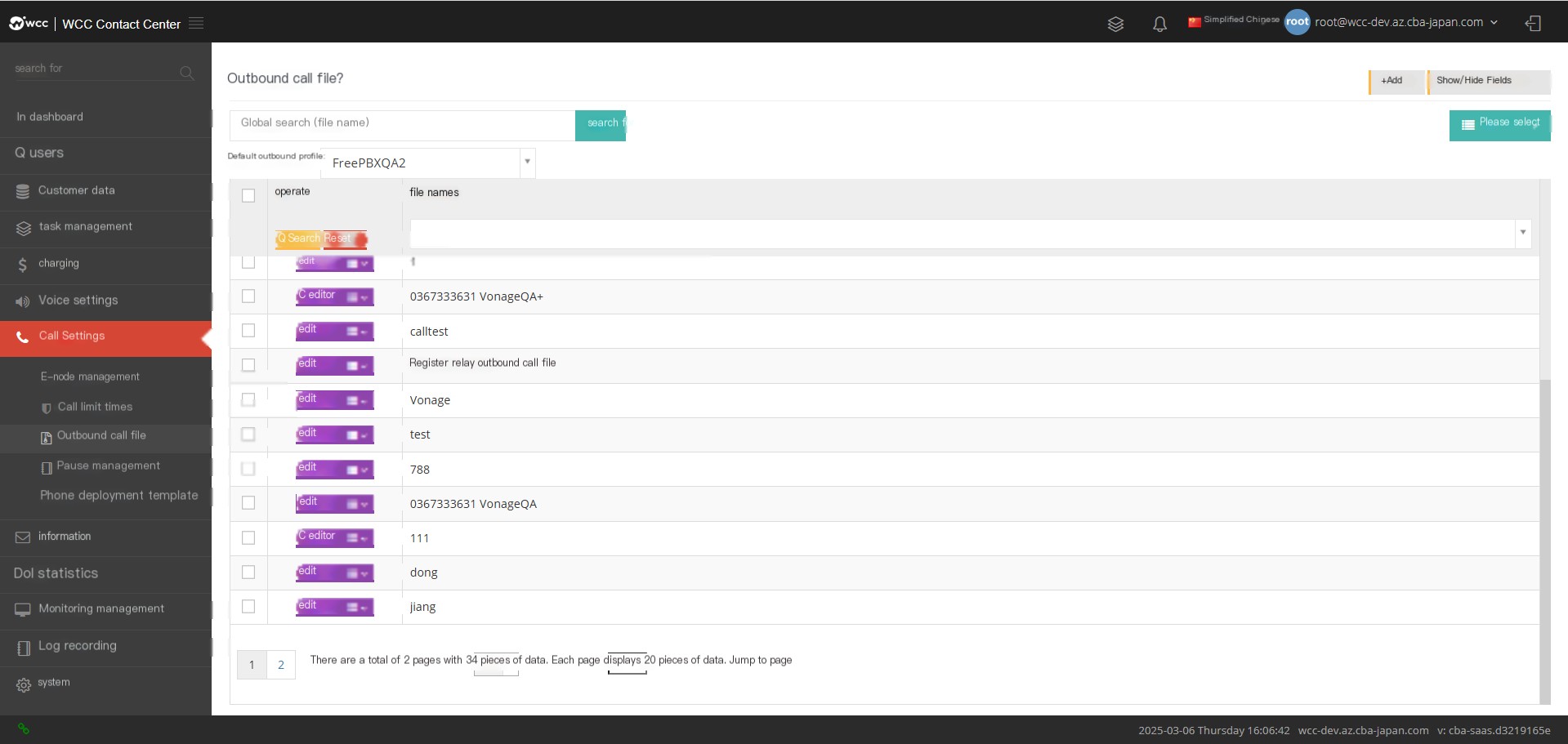
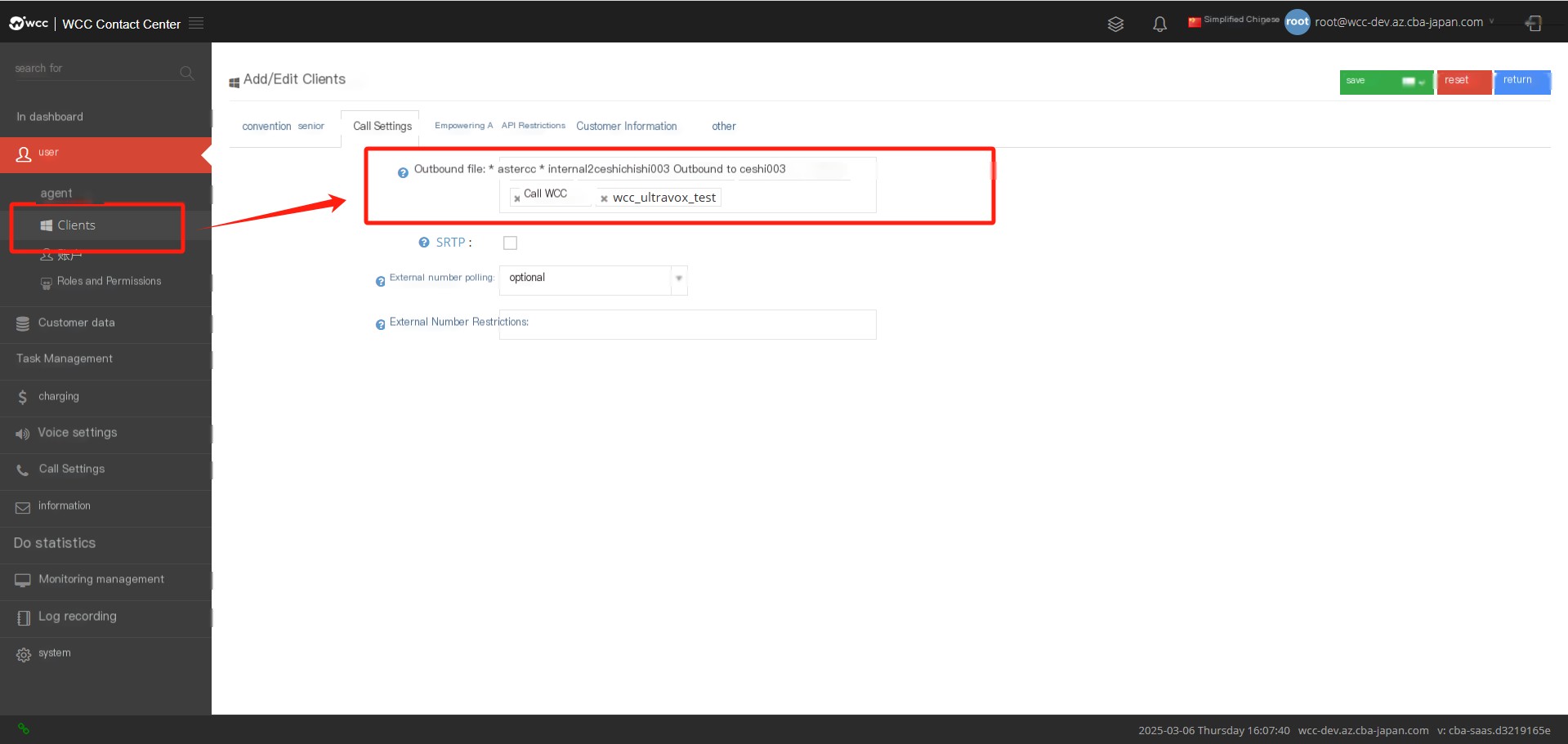
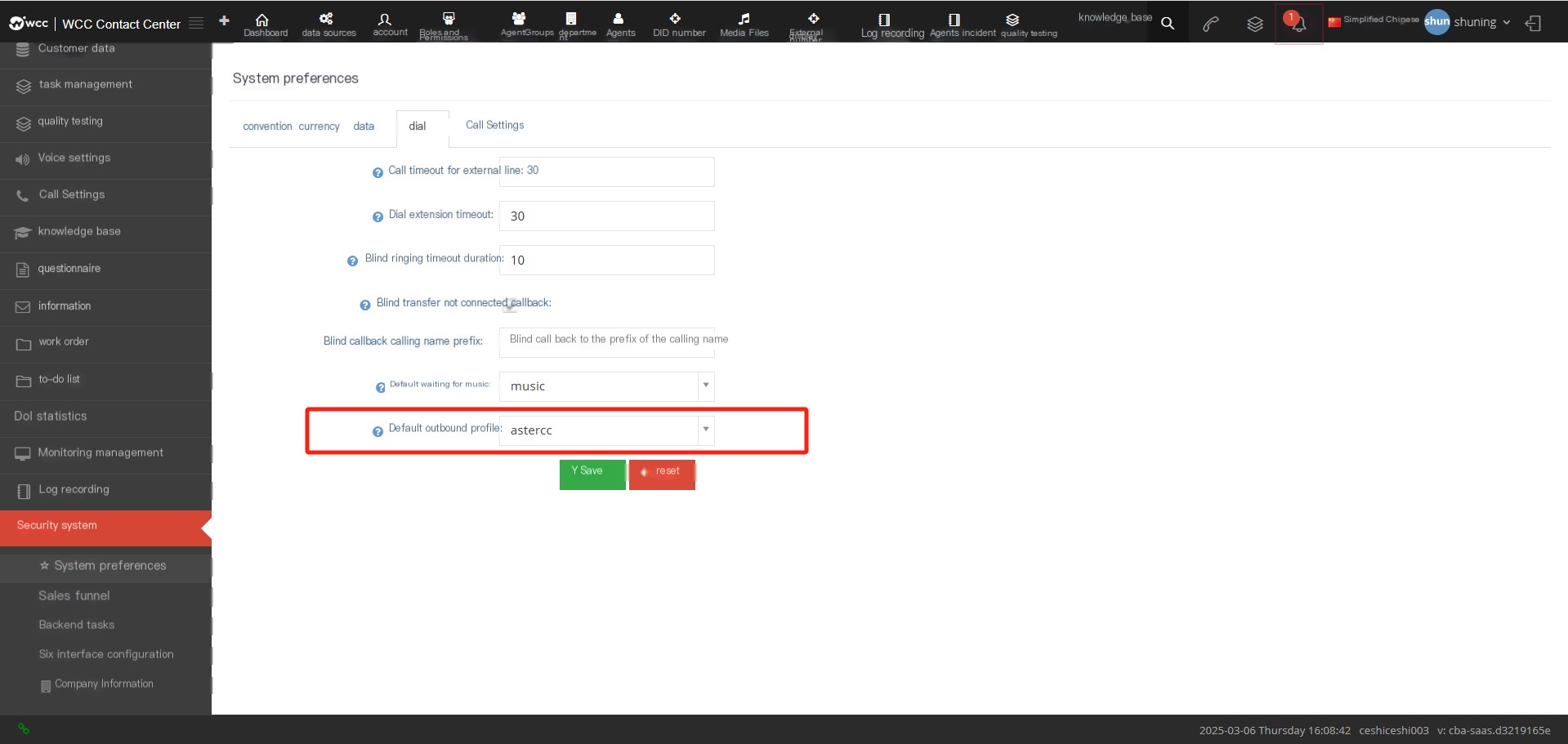
Select the corresponding outgoing file in the client level —>System preferences —>Dialization —>Default outgoing file
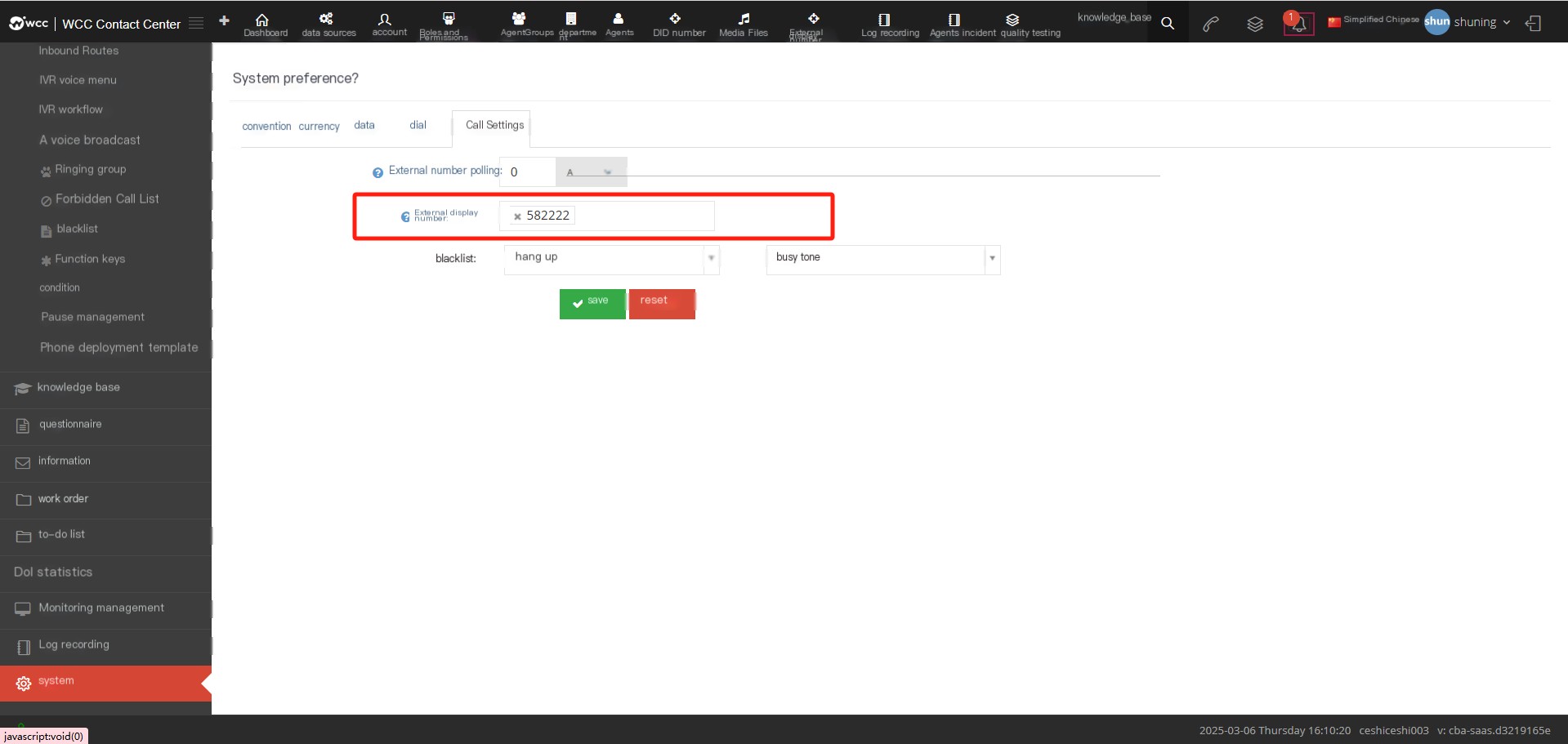
Select the corresponding display number in client level —>System preferences —>Call settings —>External number
If the corresponding configuration in the outgoing call file is normal, after logging in to the seat, the seat can turn on the phone and then make the outgoing call.
8 Calling method using outbound call task
1. Call the seat manually
After the client has established the seat, log in to the seat, check the seat into the seat group, open the contact customer page to prepare to start work.
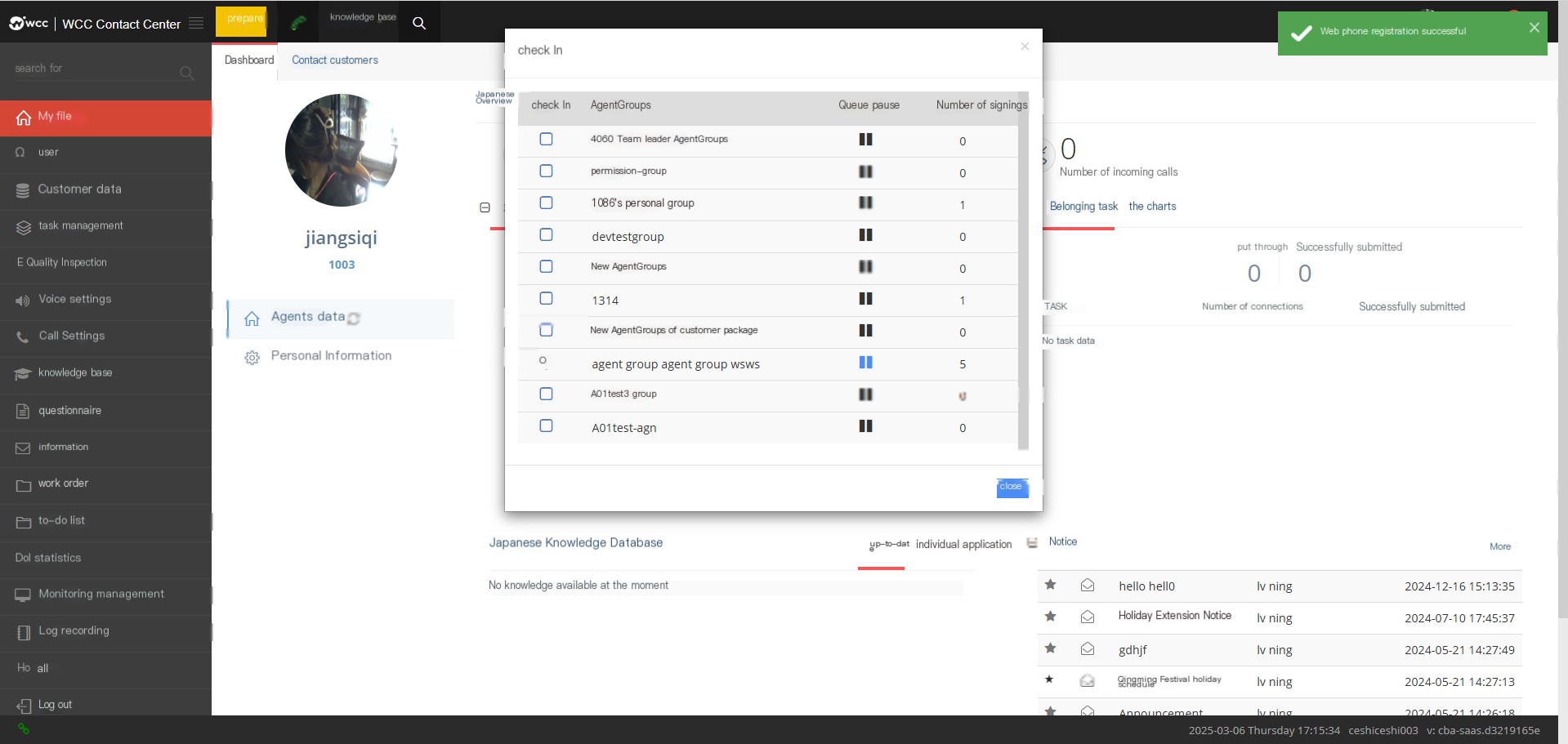
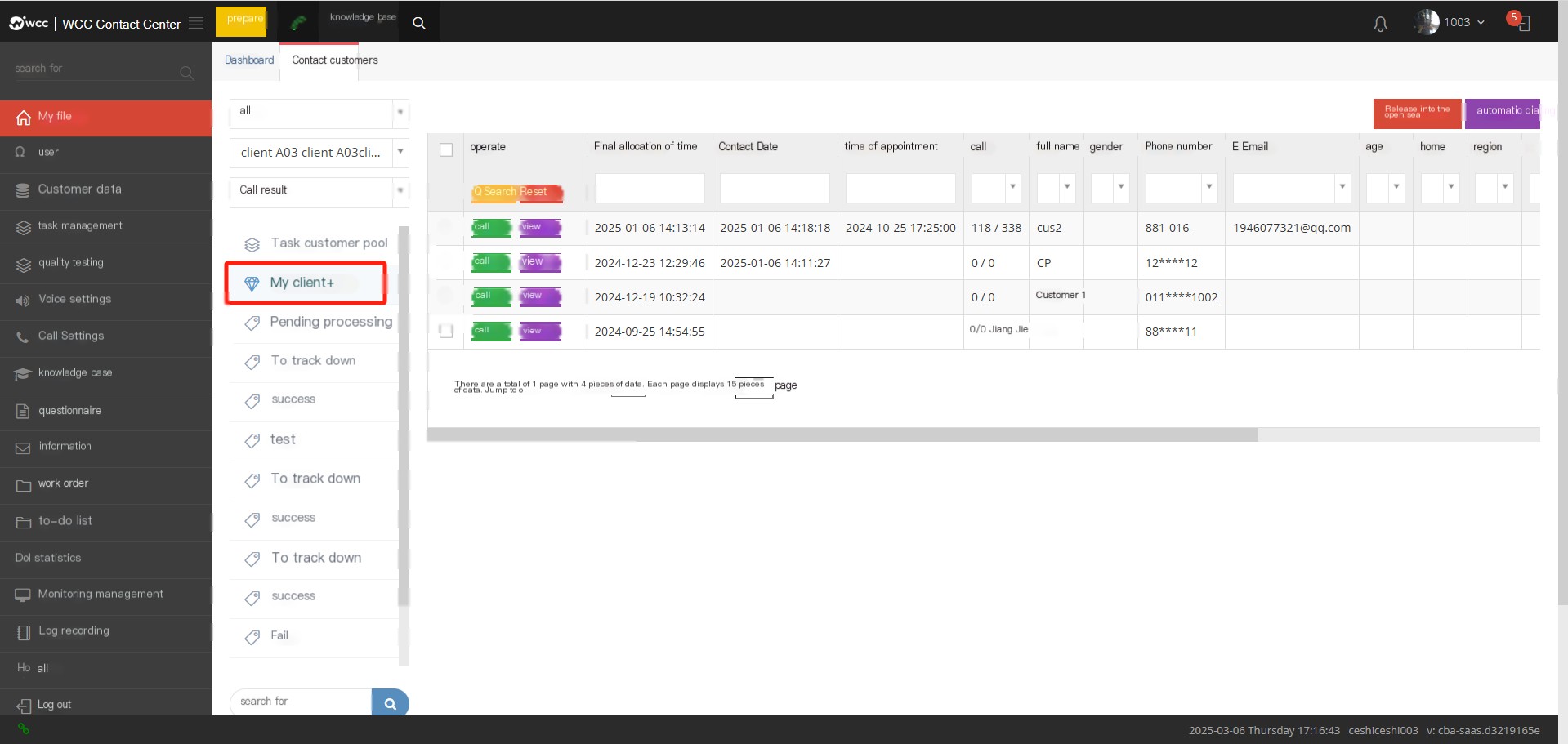
On the [Contact Customer] page, select the task you want to add a customer, and click “+” after [My Customer] to add a customer
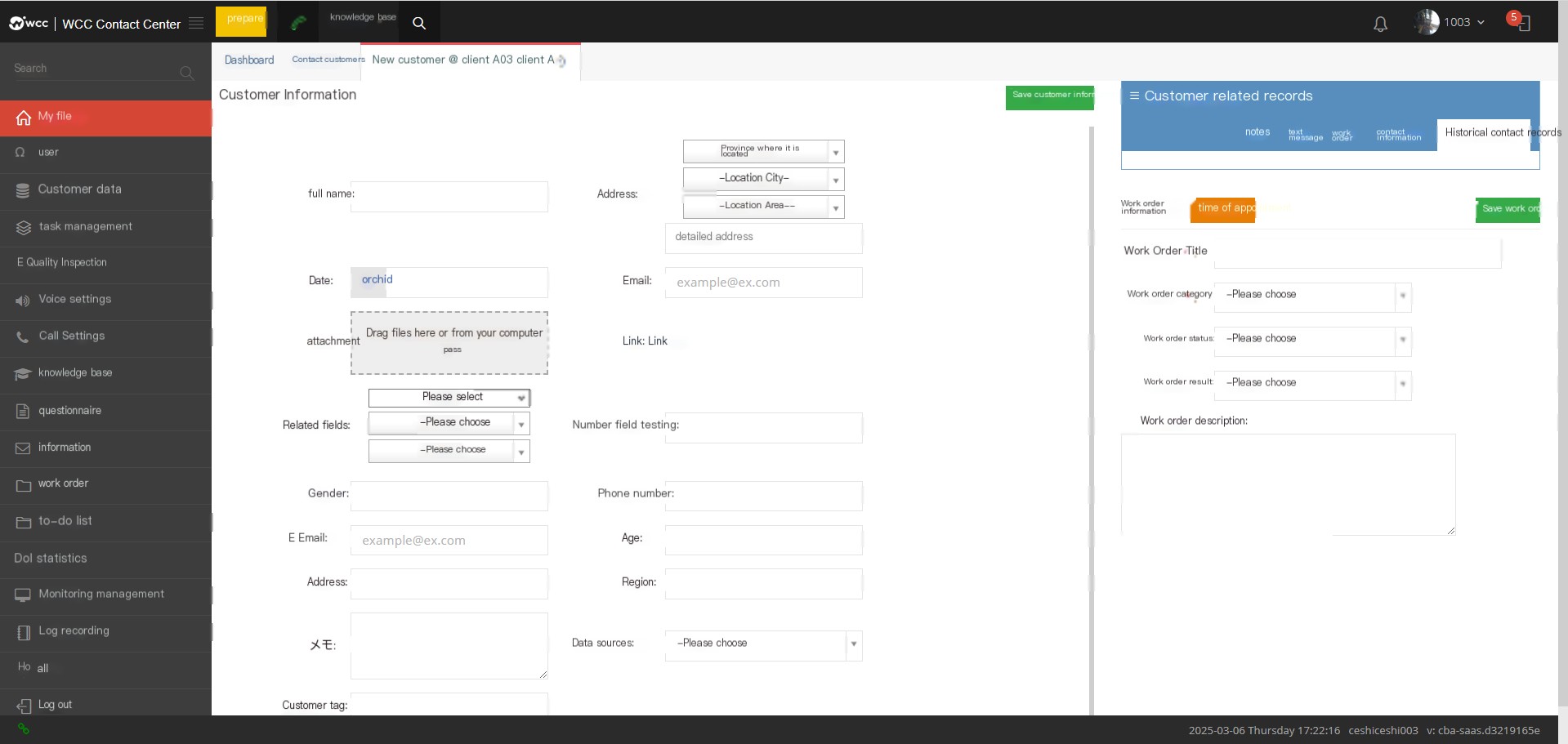
Edit and save customer information.
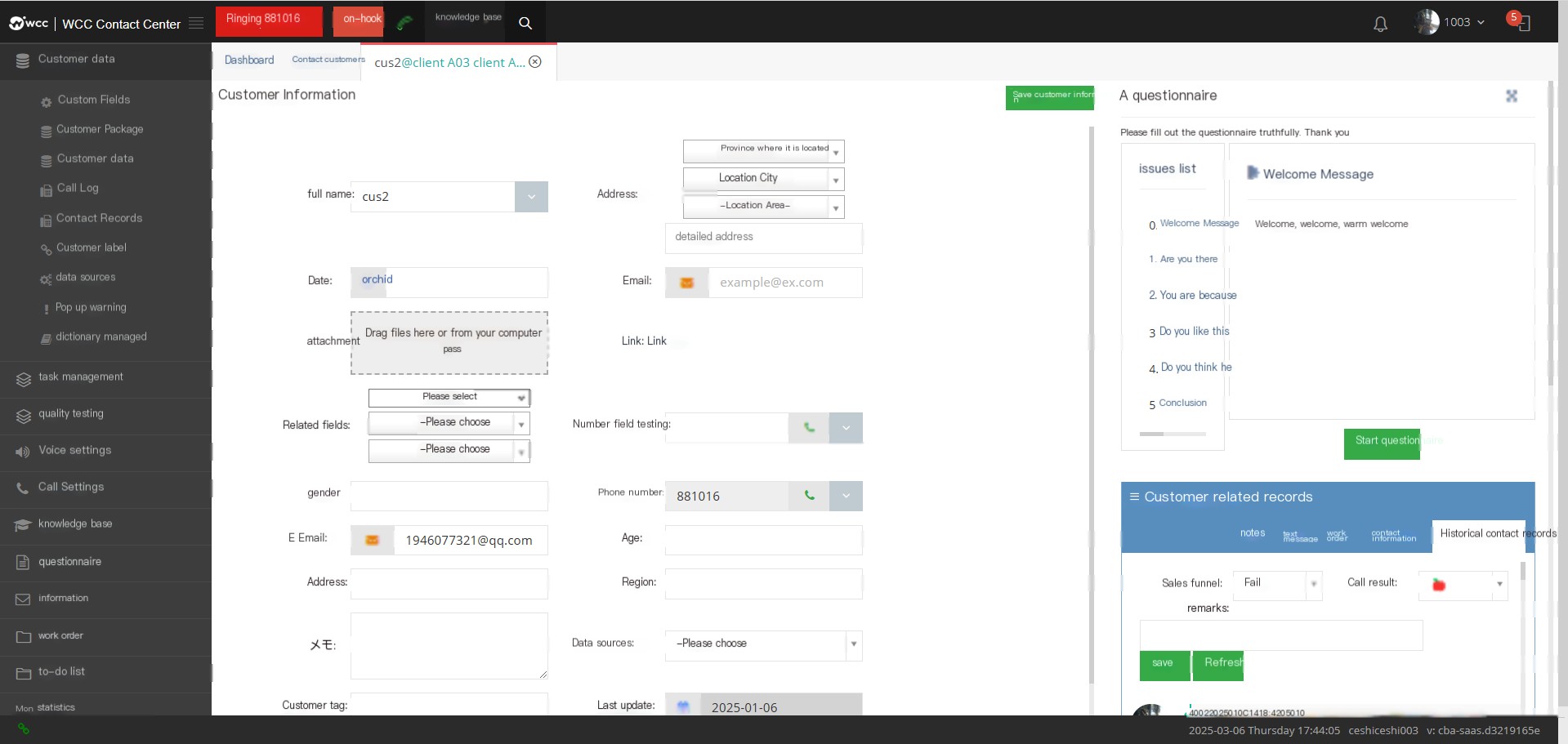
After saving customer information, you can also conduct a questionnaire survey on the customer, or establish or process work orders, etc.
When there are assigned customer seats in the agent group, customers in the customer pool can also be batched in the task customer pool.
2. Automatic dialing for assigning seats
After the seat is checked into the seat group, select the corresponding task.
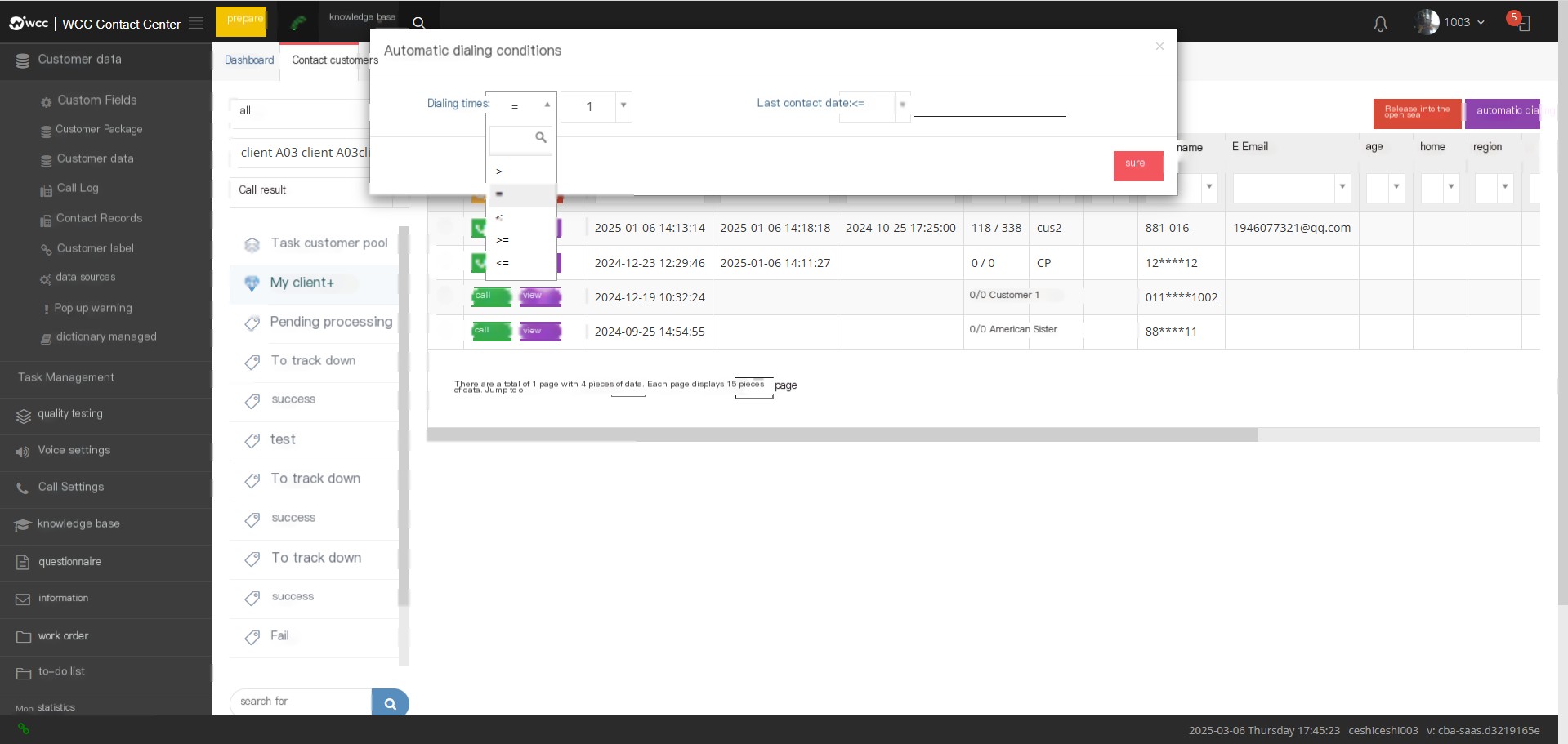
Clicking on automatic dialing will show the conditions met by customers who need automatic dialing at the agent:
Number of dials: The seat can filter the customer number to be dialed based on the number of times the customer dials.
Last contact information: The agent can define the customer number to be called based on the time of the last contact of the customer.
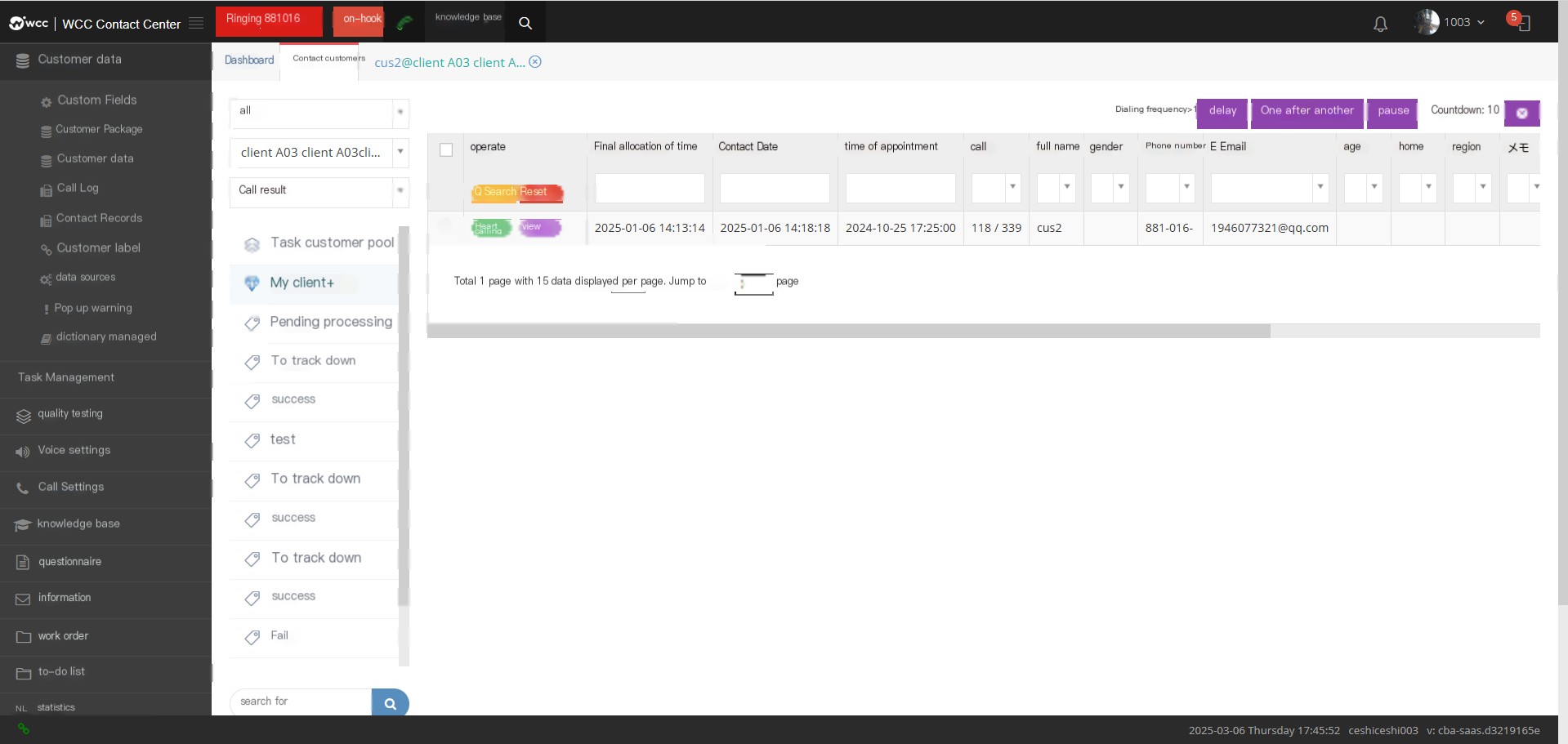
Number of dials: Conditions set by automatic dialing.
Delay: There is an intermittent time for the agent to process the result of the call after the call is over to the start of the next automatic call. If the time is not enough, the agent can click on delay. The delay time is set by the task management. Click once to delay the set delay time, and the delay can be accumulated.
Start to the next call: After the call is over and the next automatic call starts, if the agent completes the processing of the call within the countdown time set by the task, the next automatic call can be started. The agent can click this key to enter the next automatic call state directly.
Pause: After the call ends and the next automatic call starts, the agent can temporarily suspend the automatic call if there is a temporary problem and continue processing when there is time.
Countdown: The countdown time set by Task Management from the end of the call to the start of the next automatic call.
×: Turn off automatic call, and those who are already calling cannot be turned off.
3.Pre-dial
After assigning an outgoing call task, you can set the pre-dial before starting it.
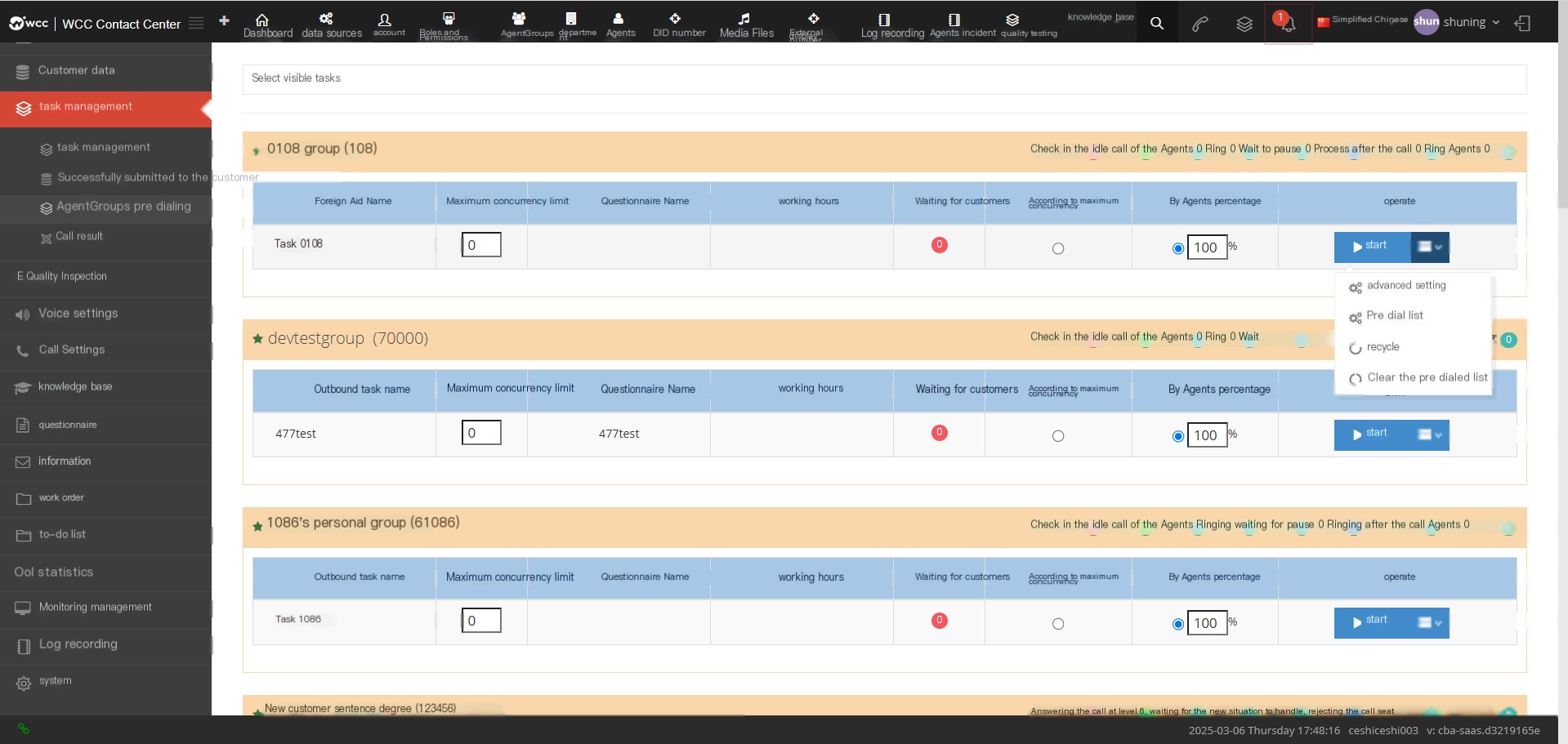
After setting up the advanced options for pre-dialization, you can enter the process of turning on pre-dialization.
Click Recycle to recycle customer data in the task.
Now return to the pre-dial page of the agent group and click Start to enable pre-dial.
During the pre-dial dialing process, the user can click the pre-dial list in the pre-dial list to view the current dialing list.
9 Three ways to transfer in a call
1 Blind to the phone
When the agent is in a call state, when it is necessary to transfer the call to a third party, there are two ways to transfer the agent blindly, that is, it can be used to transfer directly on the page, or it can be used to transfer the phone. The specific operation method is as follows:
A. Take yealink phone as an example. Use the phone to click (the corresponding button in the phone) to enter the third party number and click (trans) again to transfer to the third party. At this time, all operations of the seat are only performed on the phone.
B. Using the agent page, you can directly click the call button and enter a third-party number, click the call button again to transfer the call. At this time, the agent operation is performed on the web page.
After the transfer, the call to the agent is initiated to hang up directly. The current call is transferred to a third party. At this time, because the status of the third party is unknown, if the third party can answer, the transfer is successful, that is, the dialing user and the third party successfully connect.
The above is to realize blind phone rotation.
Note: Third parties may include seats, external lines, etc.
2 phone consultation and transfer
When the agent is in a call state, take yealink phone as an example. When it is necessary to transfer the call to a third party, you need to directly use the phone to click (trans) to enter the third party number. After entering, click (send) on the phone. The agent that initiates the transfer can call with the designated third party to determine the call status of the third party at this time, confirm that it can answer and then click (trans) to forward the call.
3 phone stay
When the agent is in a call state, take the yealink phone as an example. When it is necessary to transfer the call to a third party, you need to directly use the phone to click (trans) to enter the residency number set in the function key. Take the system default 700 as an example. After entering, click (send) on the phone. The call will be resided, and the resident party will keep the music. When the third party seat or the original seat wants to retrieve it, you can press 701 according to the voice prompt.
10 How to use the automatic deployment of phones
Taking yealink phone as an example, set the username and password for automatic deployment in the client and phone
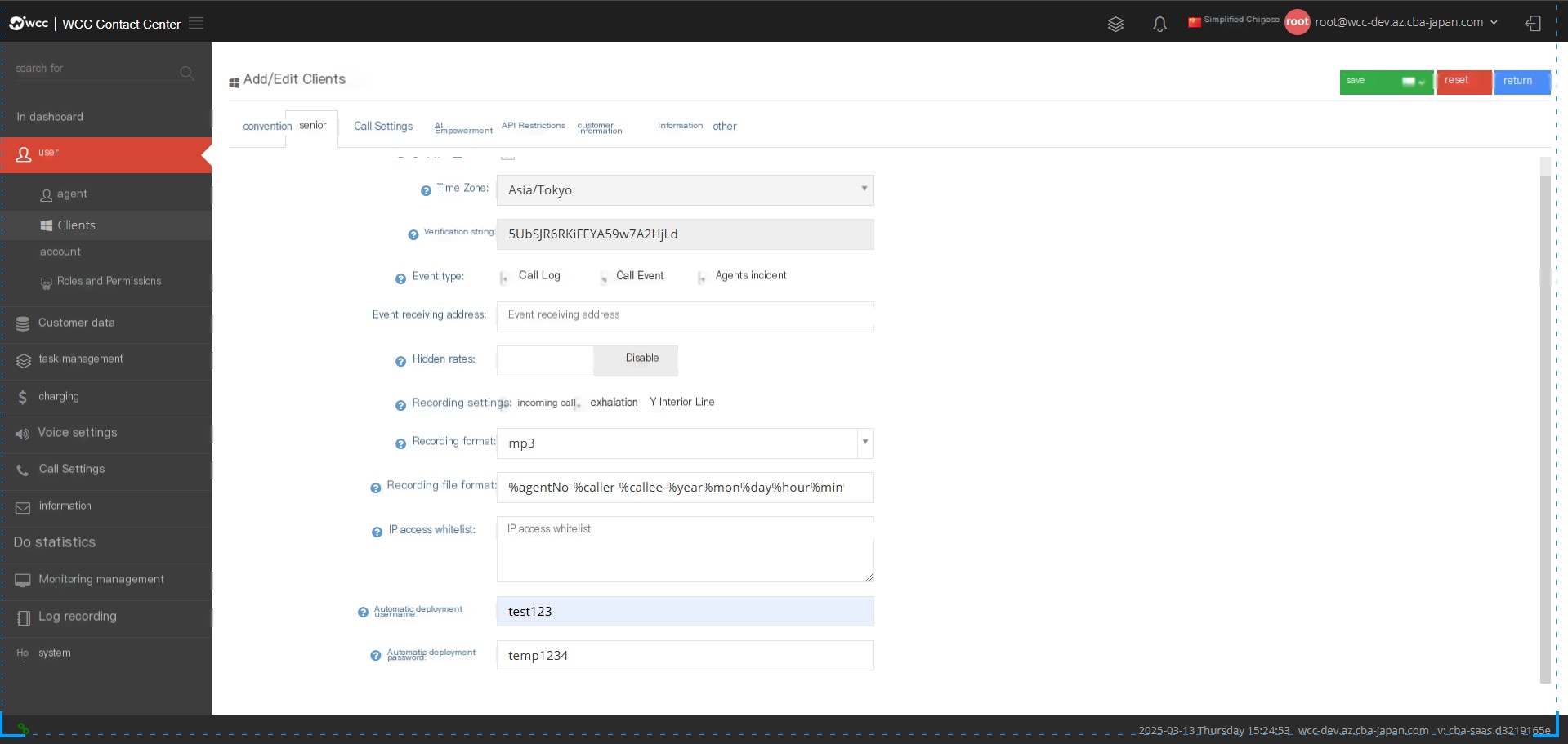
On the Agent - Advanced Page, select the phone deployment template - fill in the phone’s MAC address
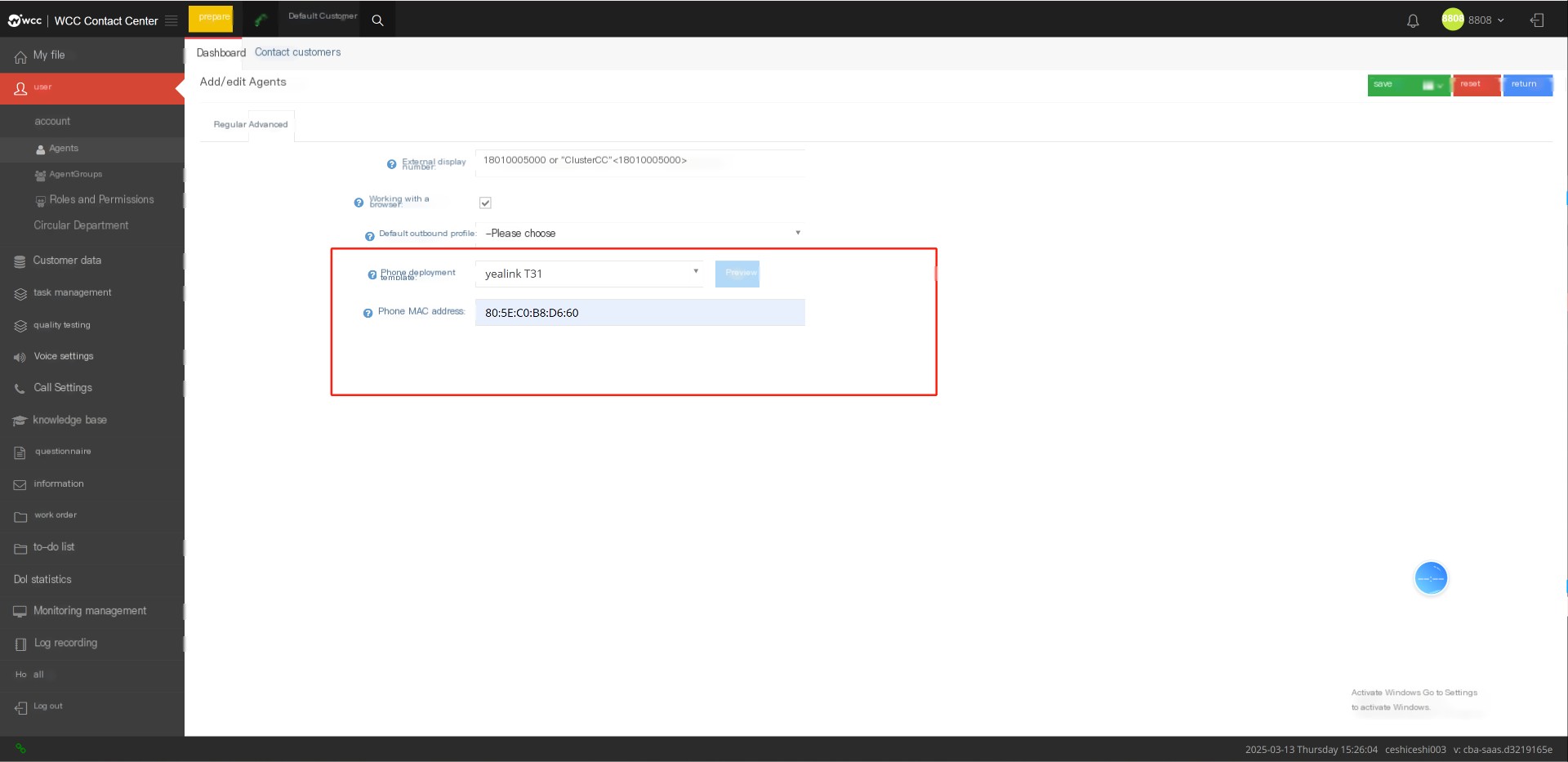
After saving, click on the agent to edit - preview the phone deployment template, fill in the user name and password to preview
Fill in the server url and username and password set in client settings at the yealink phone settings-settings-automatic update
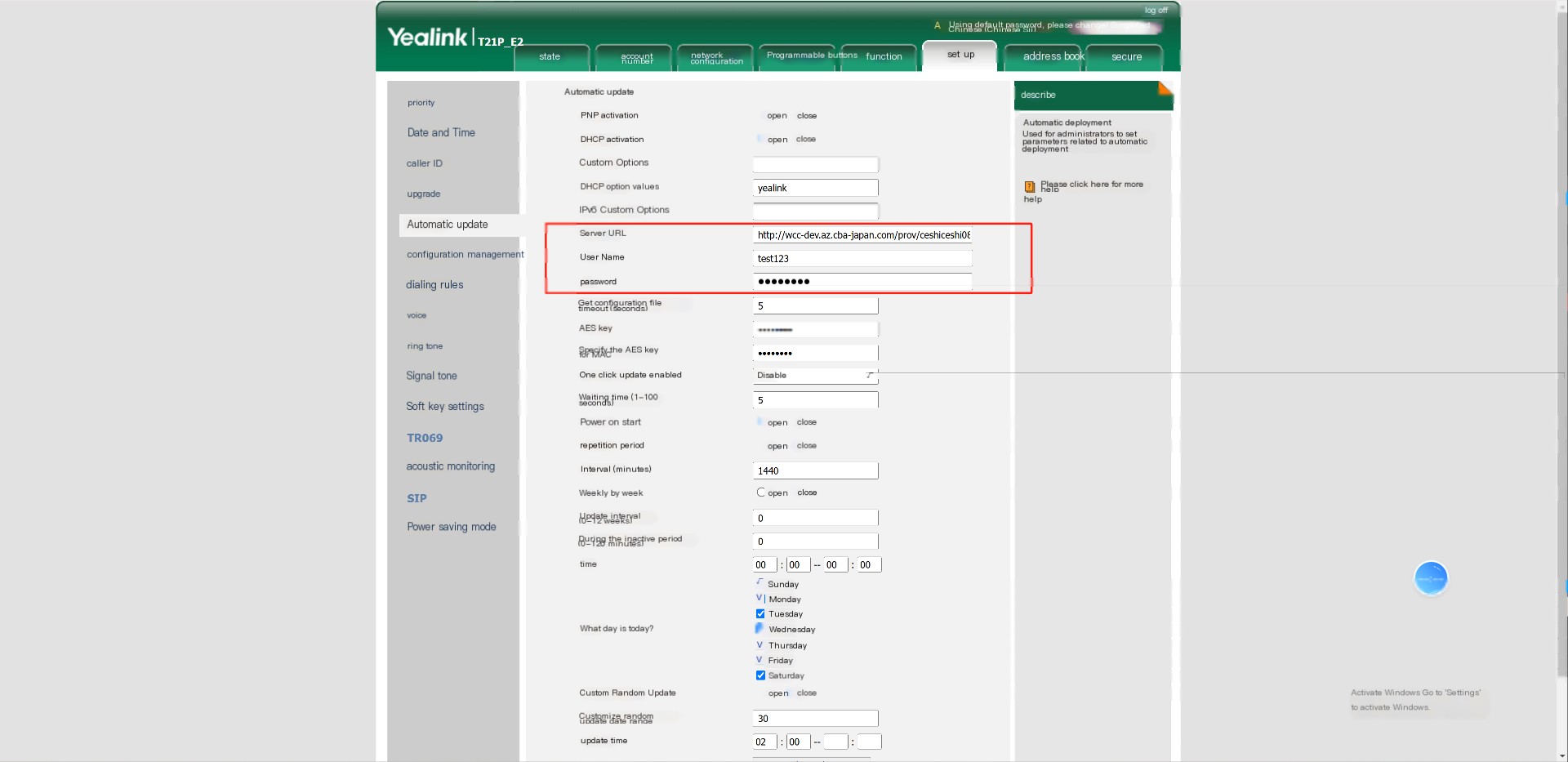
The automatic deployment of the phone will be successful.