2 Toolbar
After logging into the Client page, you can use some shortcuts in the shortcut menu bar at the top.
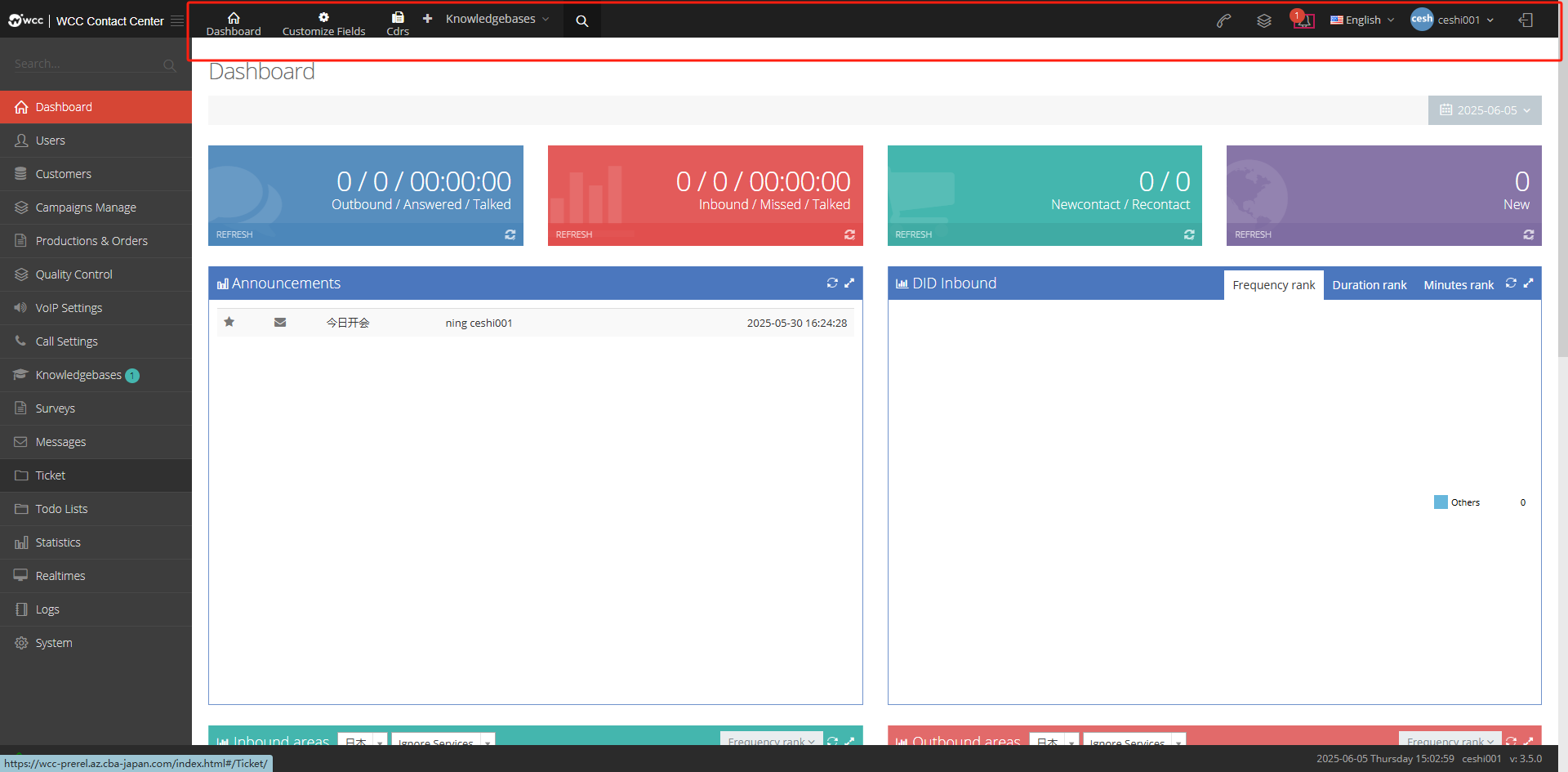
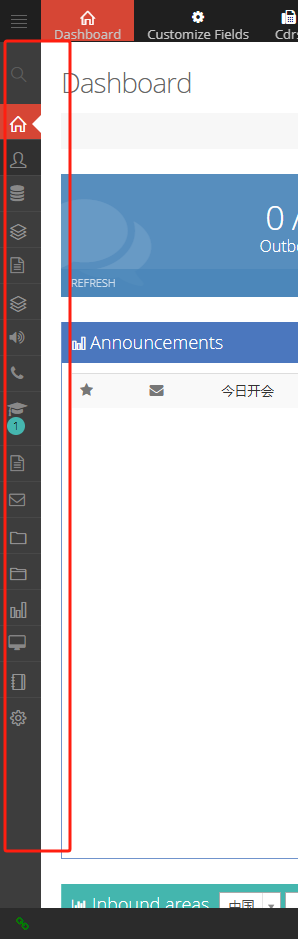
【Fold Menu】When you click this button, the page menu does not display text, only icons are displayed.

↓↓↓
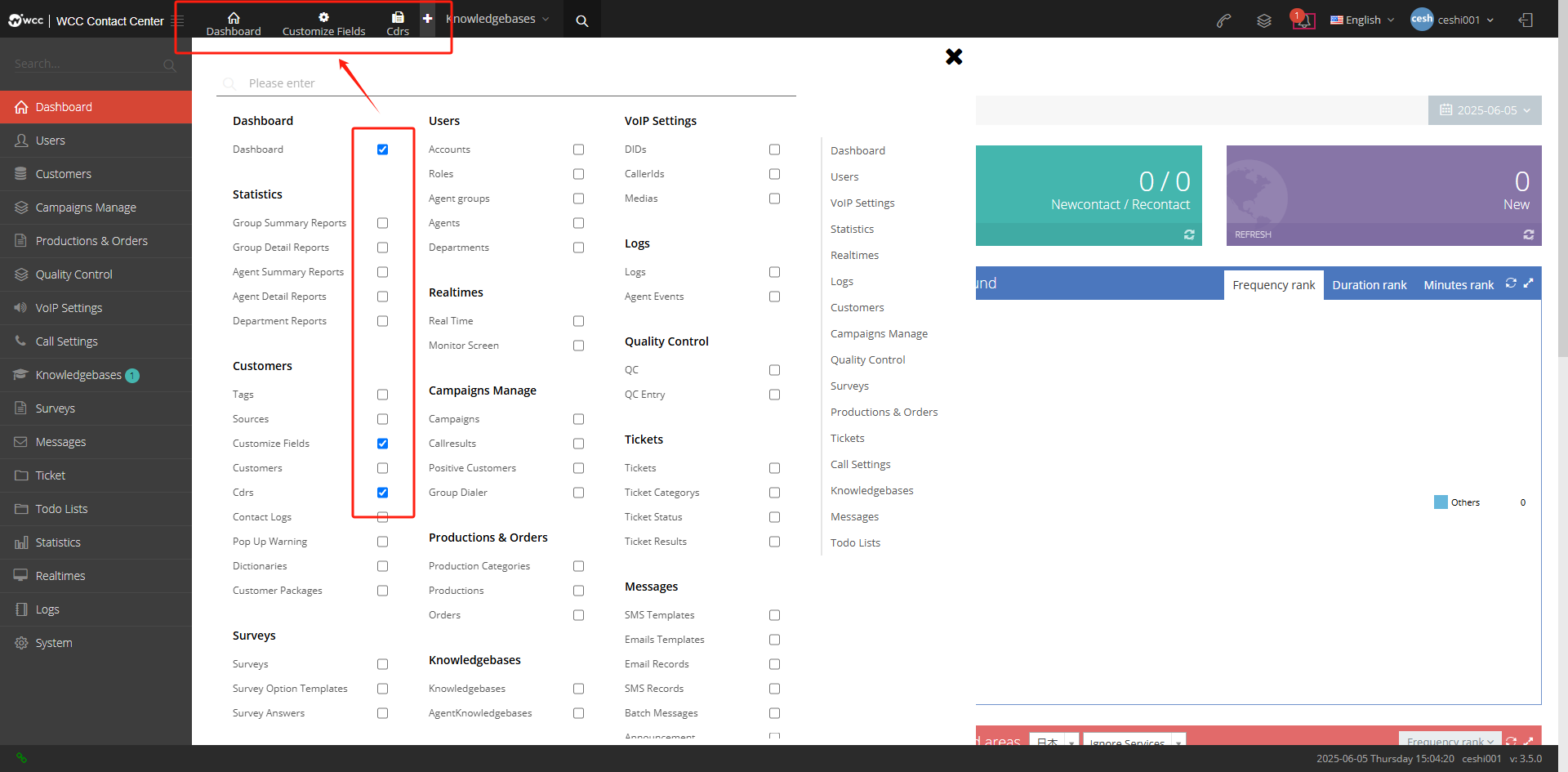
Here you can select shortcuts for the features.
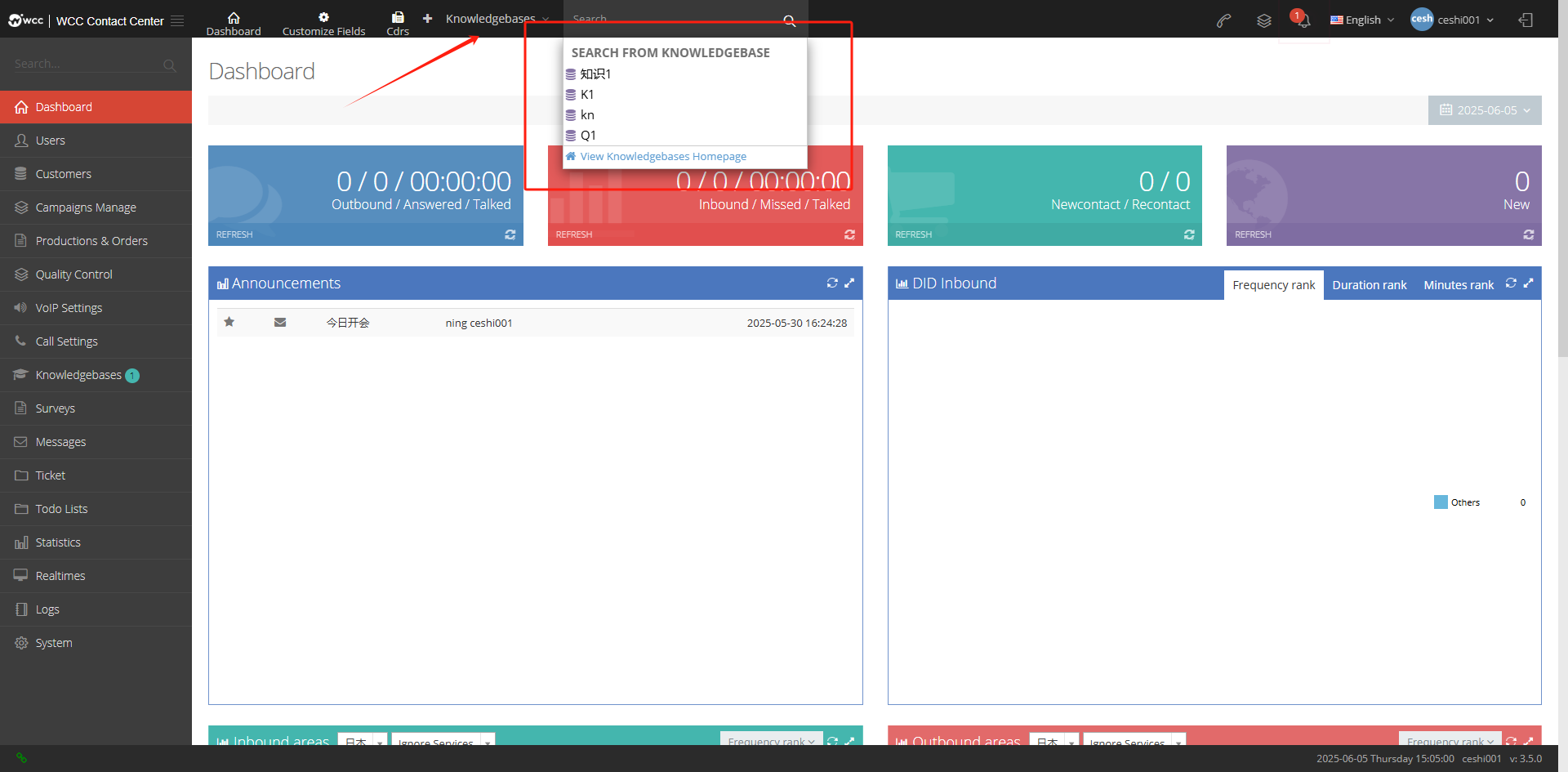
[Quick Search] button, you can search for knowledge directly in the knowledge base.
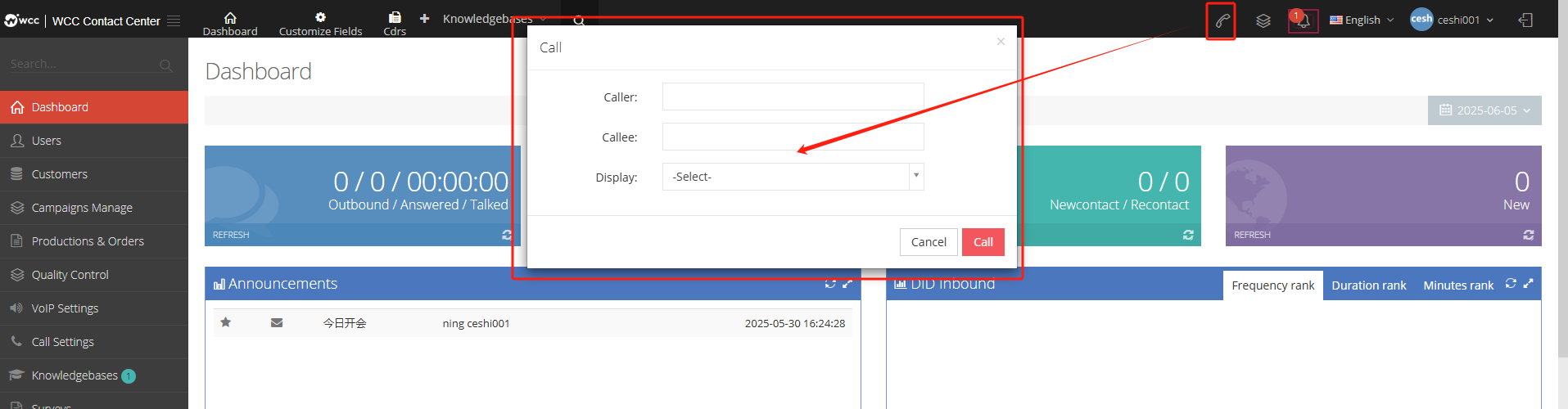
[Call] Click the call button, fill in the calling number and called number, select an external number, click Call, and you can make a specified call at the client level.
Fill in the caller number and fill in the caller number.
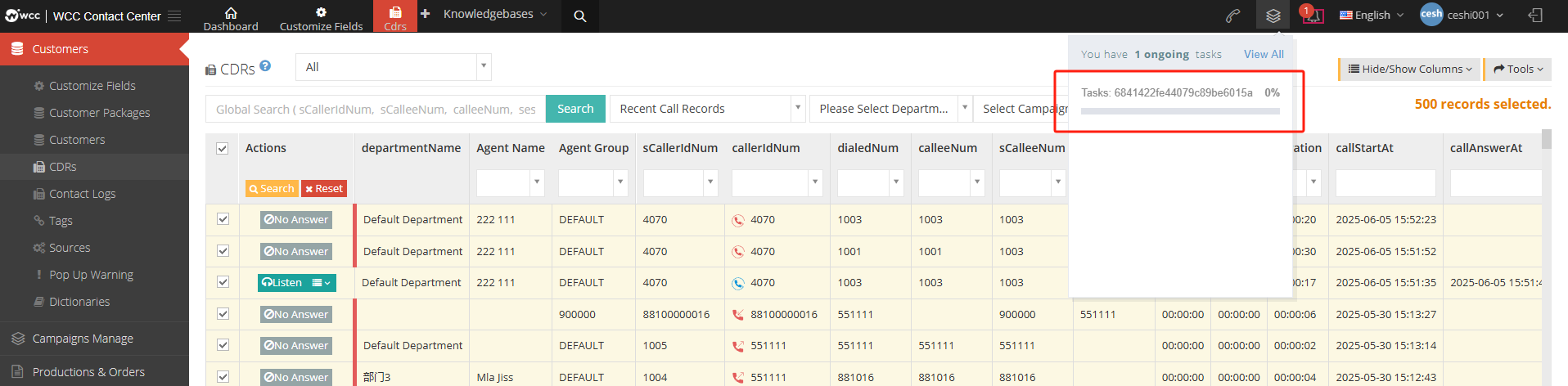
【Task】When there is a task import or export, the task progress is displayed here.
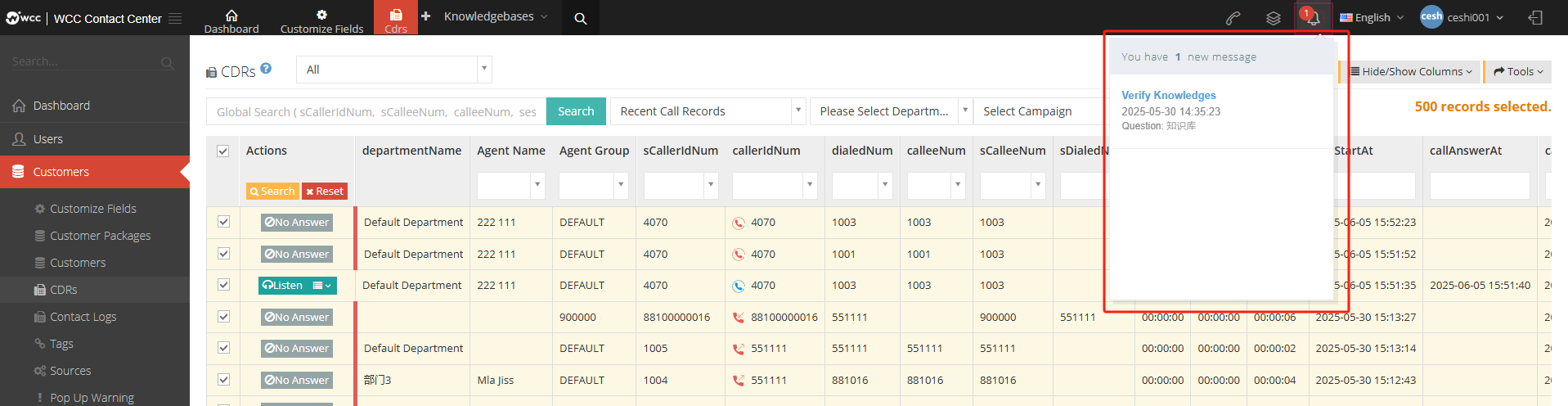
[Message Tips] If there are system notification messages, such as announcements, reviews, etc., it will be displayed here, click to view the message.
[Language] You can switch the system language here, and refresh the page after switching. When the agent logs in in the current language, the agent will follow the client’s current language.

【client】Click here to view customer profile, announcements and login footprints (if you are logged in from a premium loginer)

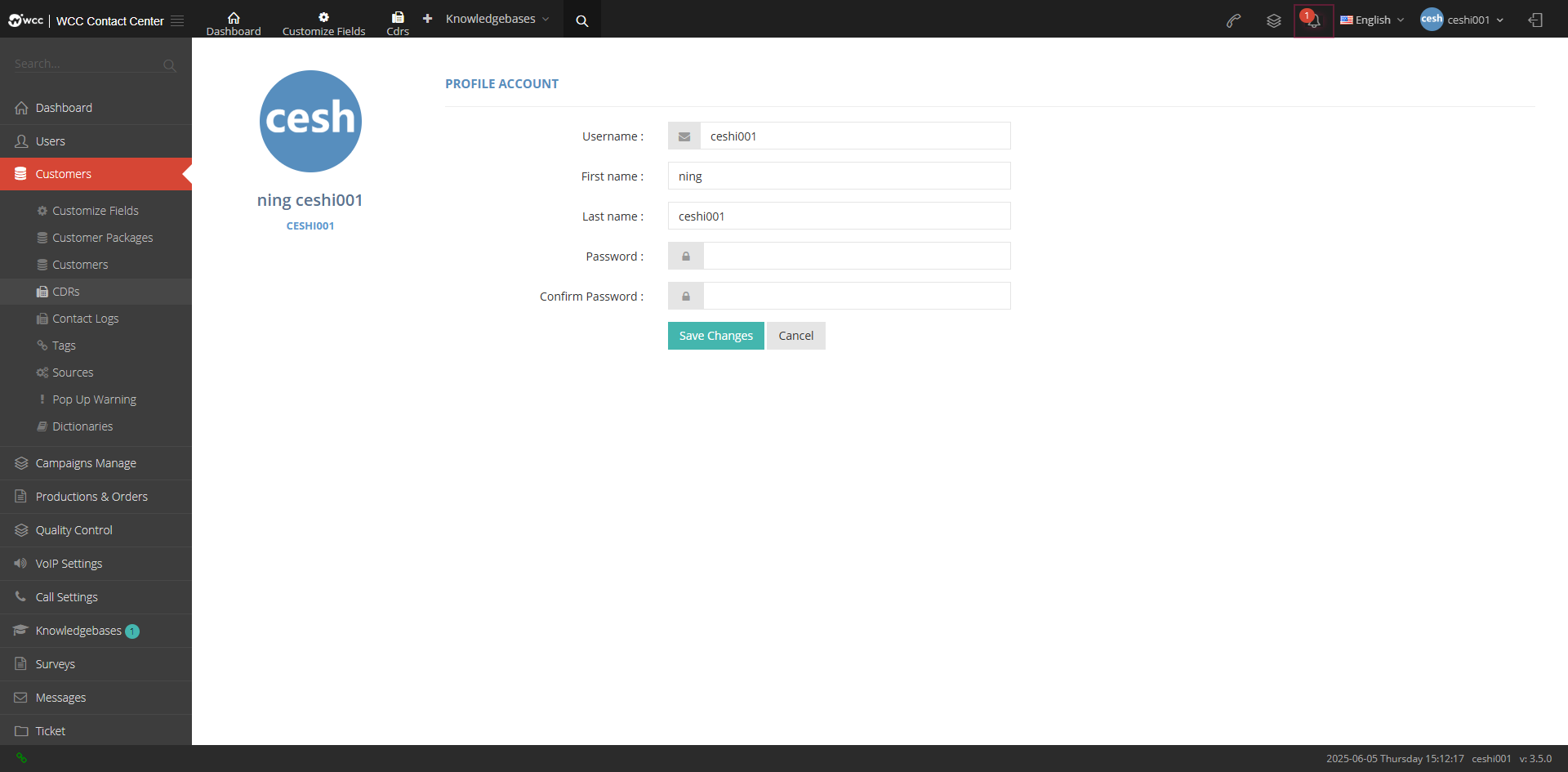
【My Profile】Customers can modify their account information, including usernames here.
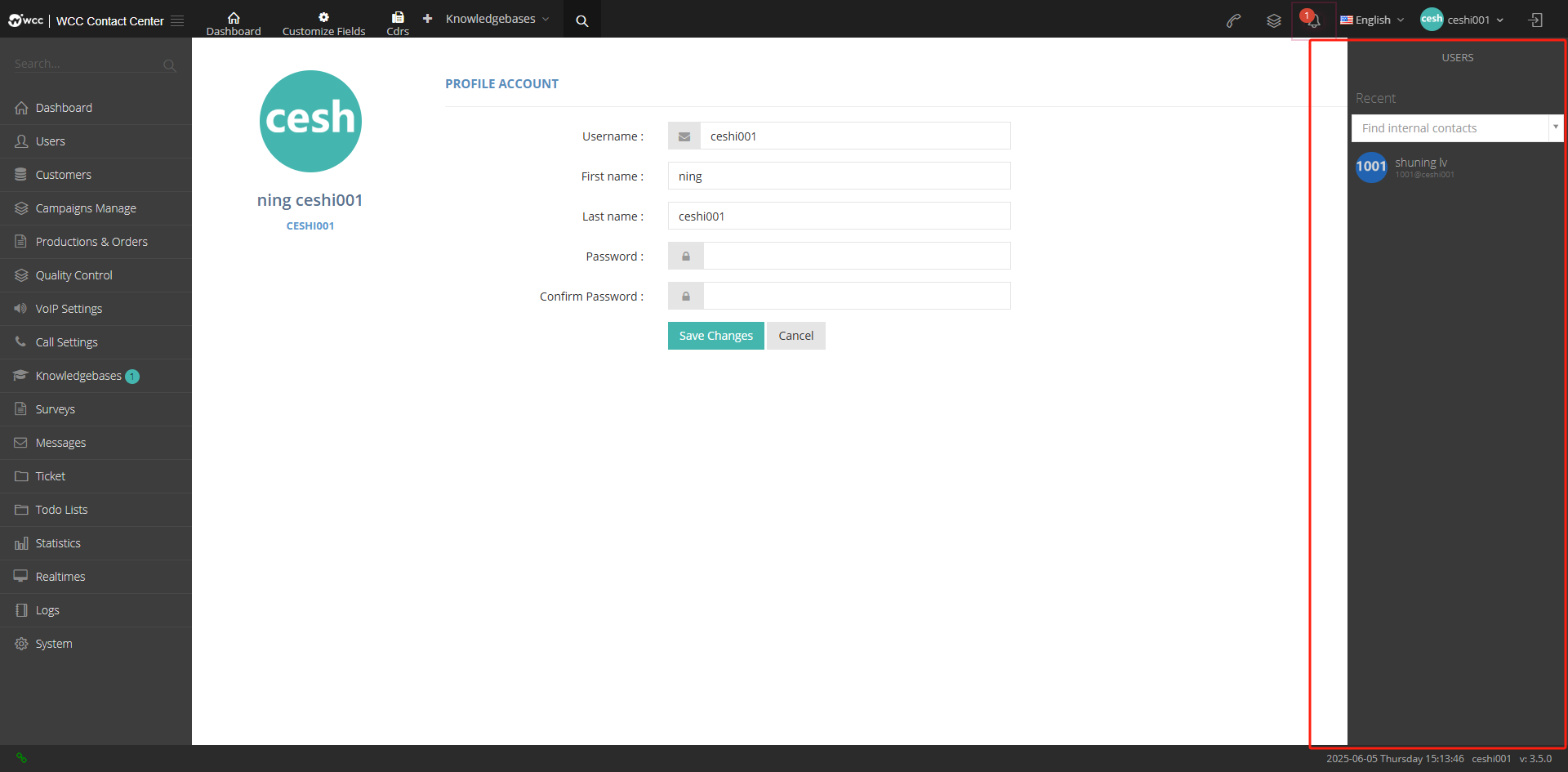
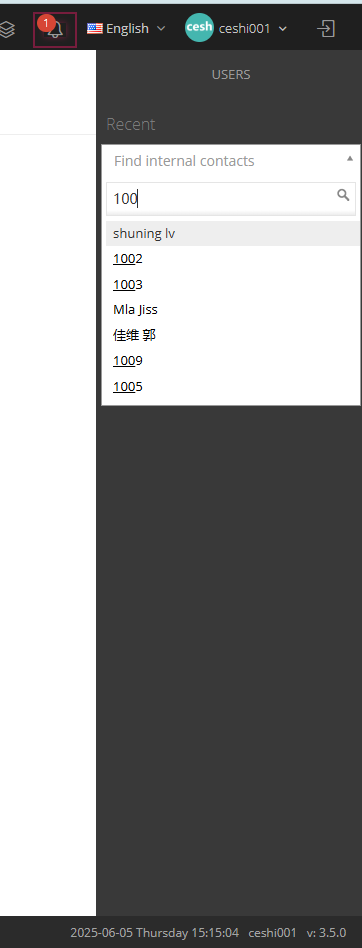
[Chat Page] Client can search for seats and chat with seats. Seats with chat records can be displayed directly in the dialog box bar.
【user】
Shows the name of the most recent contact.
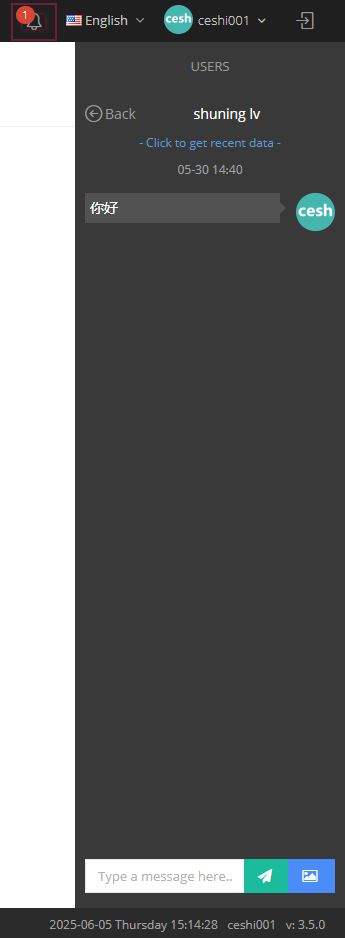
Client enters the text message to send in the input box.
Click Get Message History to view previous chats with the agent.
Client enters the SMS in the input box to send.
Click on the picture [Picture Send] to send the picture. The picture format currently supports JPG, PNG, and JPEG.
Click [Return] to return to the conversation list.
【Dashboard】
The dashboard displays incoming and outgoing statistics for proxy calls.
Client users can view statistics on the control panel; outgoing call/on/call duration; incoming call/missing call/call duration;
Connect the new number / connect the old number; create a new work order; announcement; DID call in; call area; called area; set parameters.
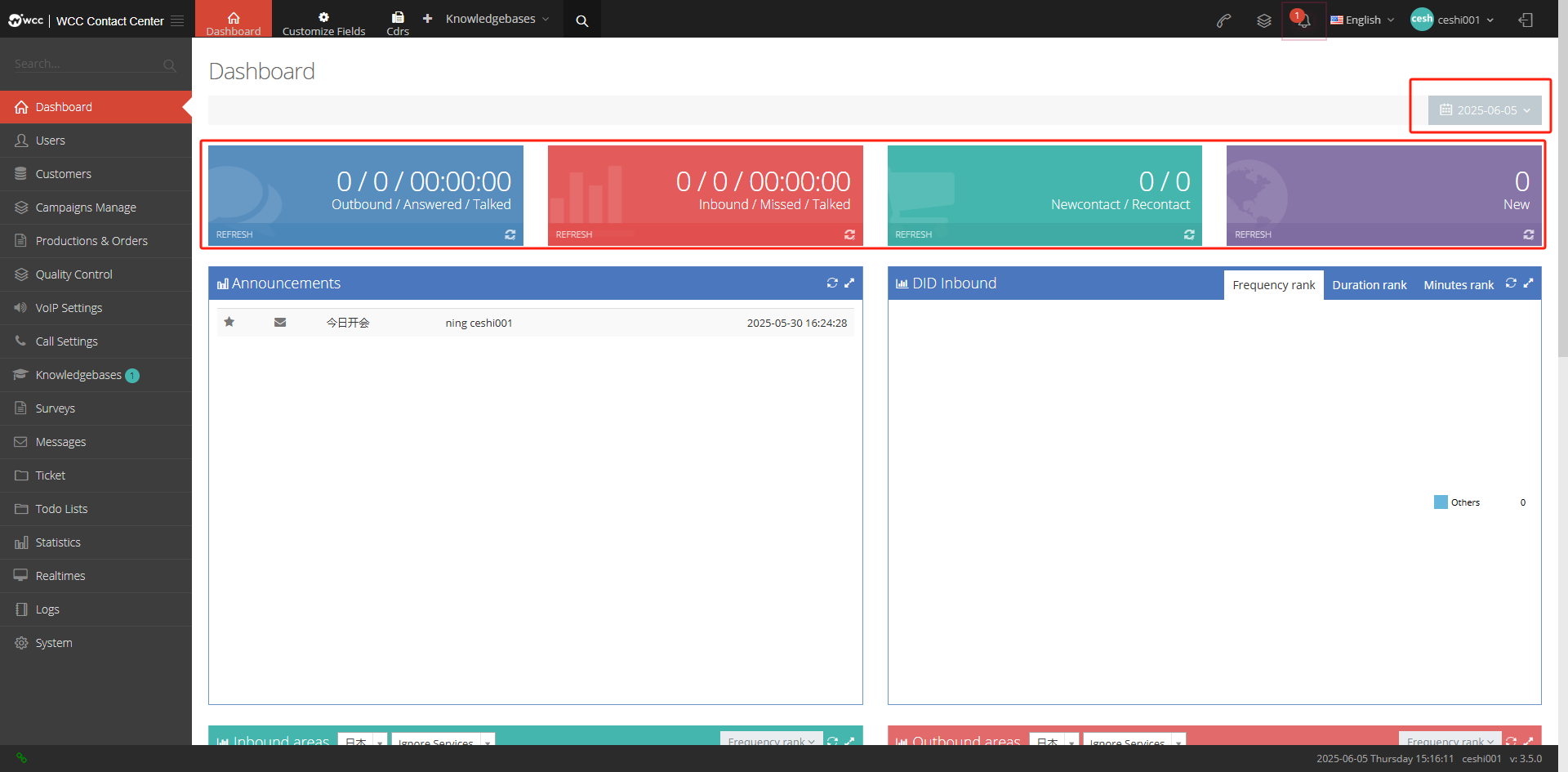
2.1 Call time/reach/call duration
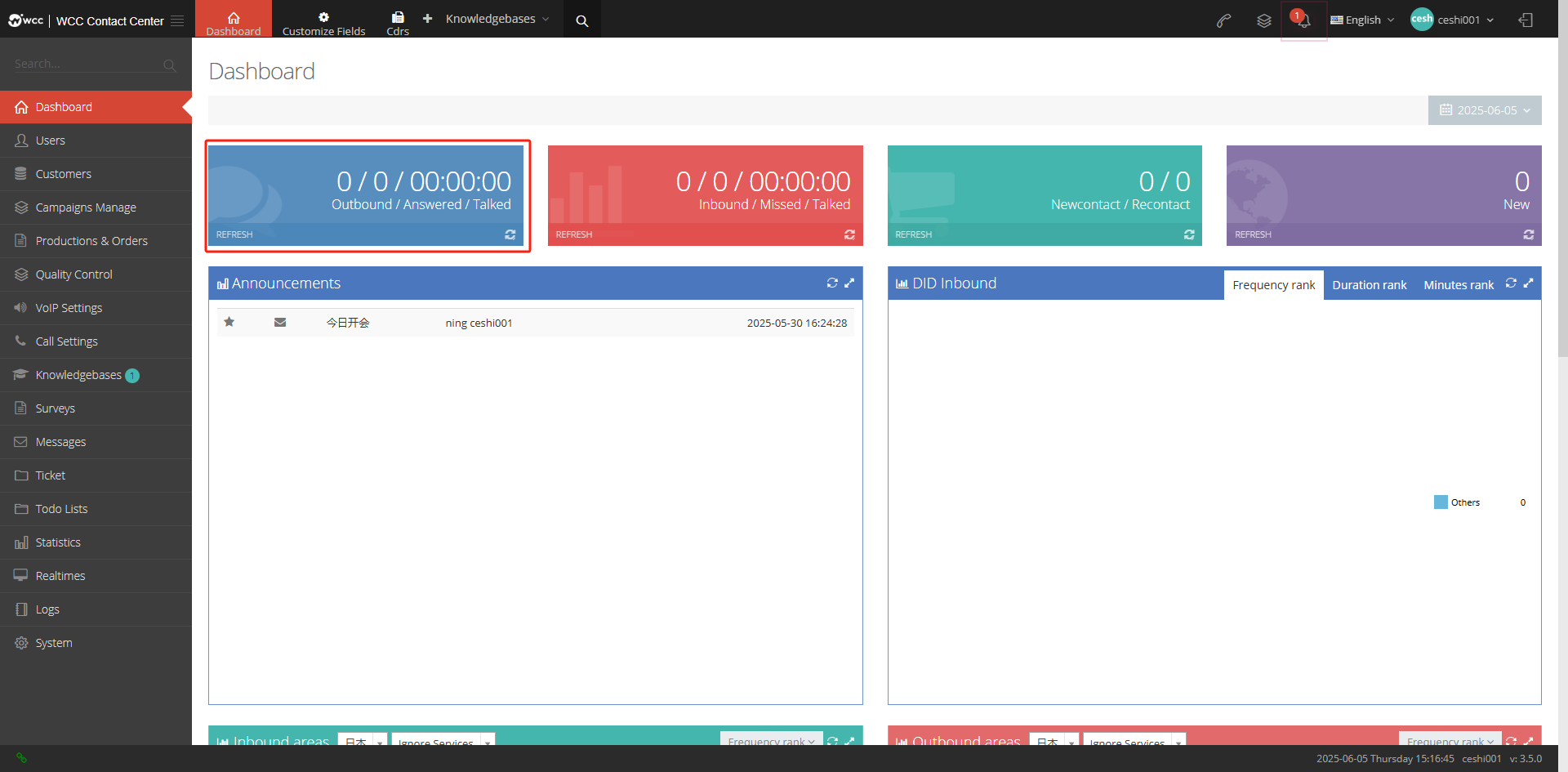
Call out: The total number of calls issued by the client that day.
Connect: The number of times this client calls out on the day.
** Call duration:** The length of time the client calls out on that day.
2.2 Call in / missed / call duration
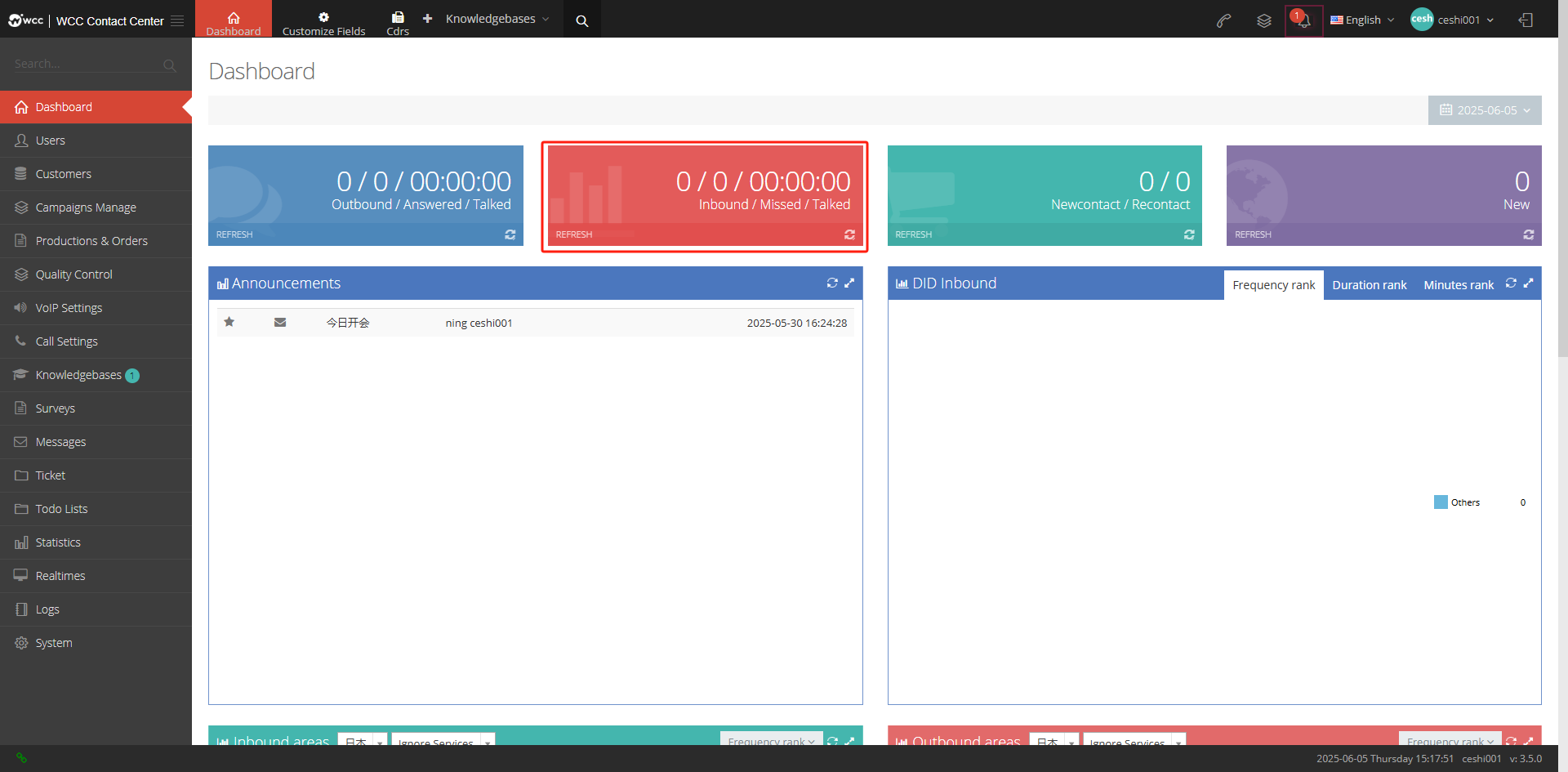
Incoming: The number of calls made by the client on that day.
Leaked call: The call to the client on that day was called, but it was not answered.
Call duration: The call duration that calls to the client on the same day.
2.3 Connect the new number / Connect the old number
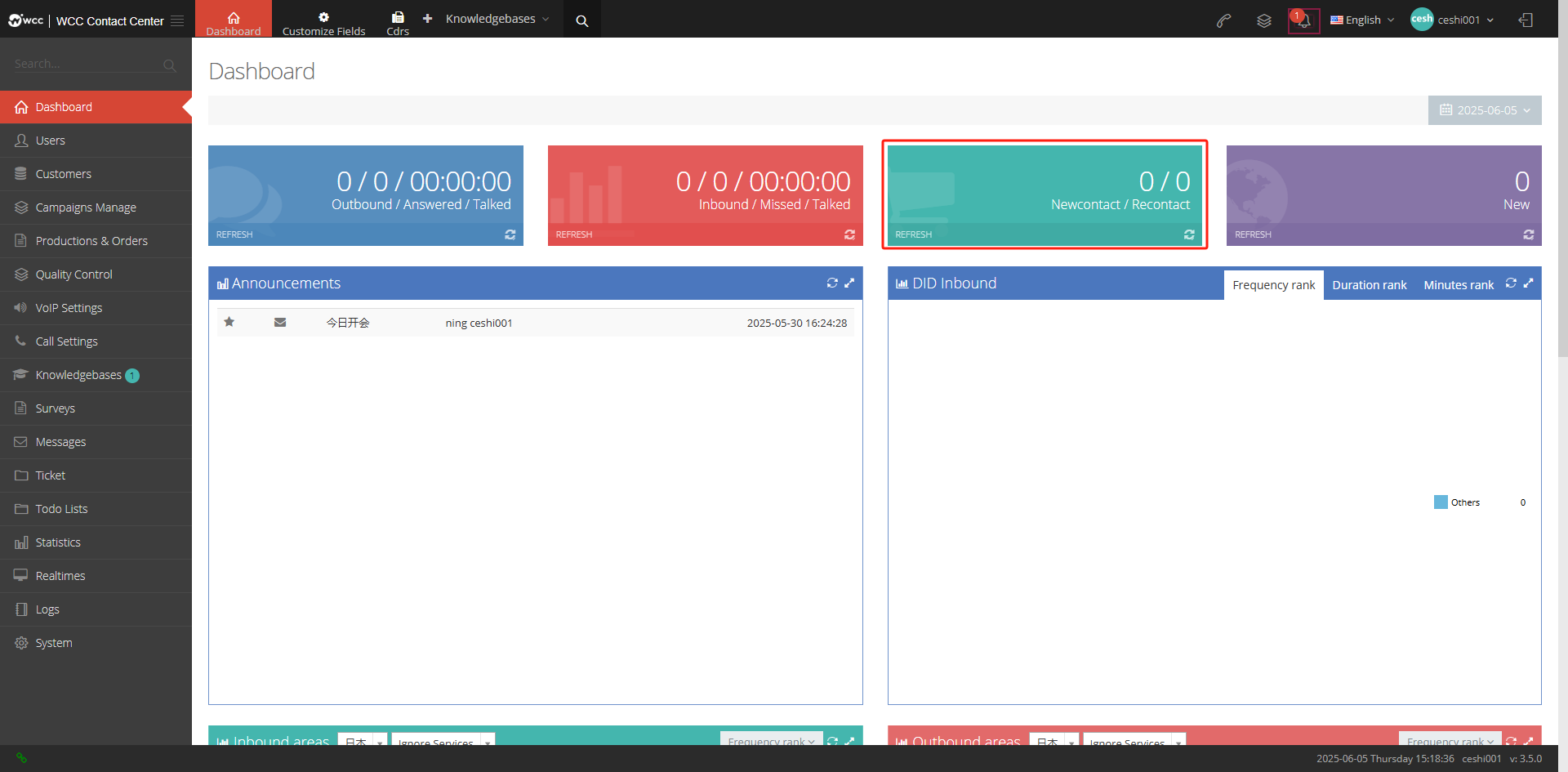
New number connected: The number that was called in the client for the first time and was connected.
Connect the old number: The saved or deleted number of the system will be displayed as the old number after dialing and reconnecting.
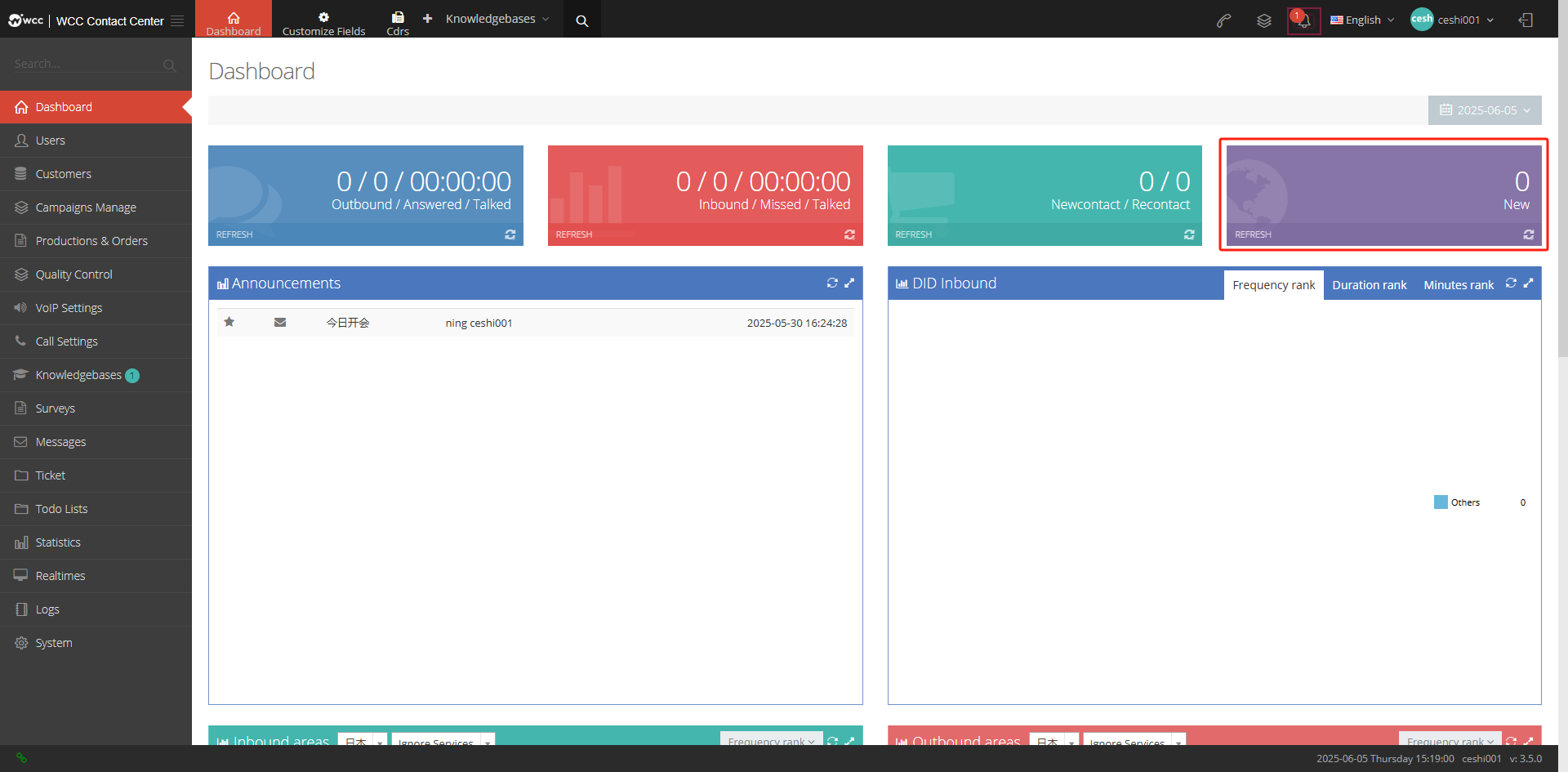
2.4 New work order
All tickets created on the same day, including tickets created on the client-level ticket page and tickets created on the client profile page.
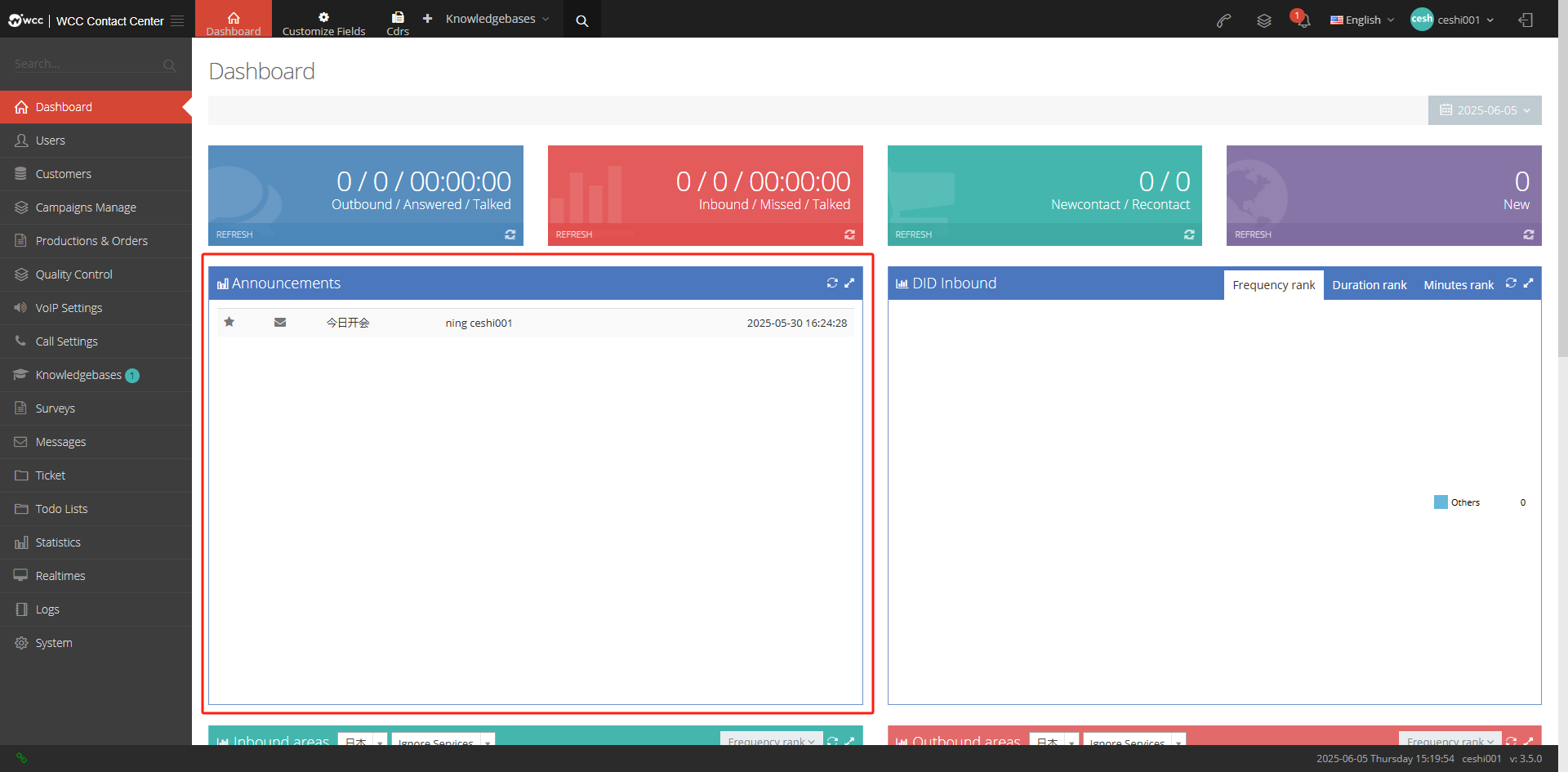
2.5 Announcement
All announcements created by the Client and its agents will be displayed cumulatively.
2.6 did call in
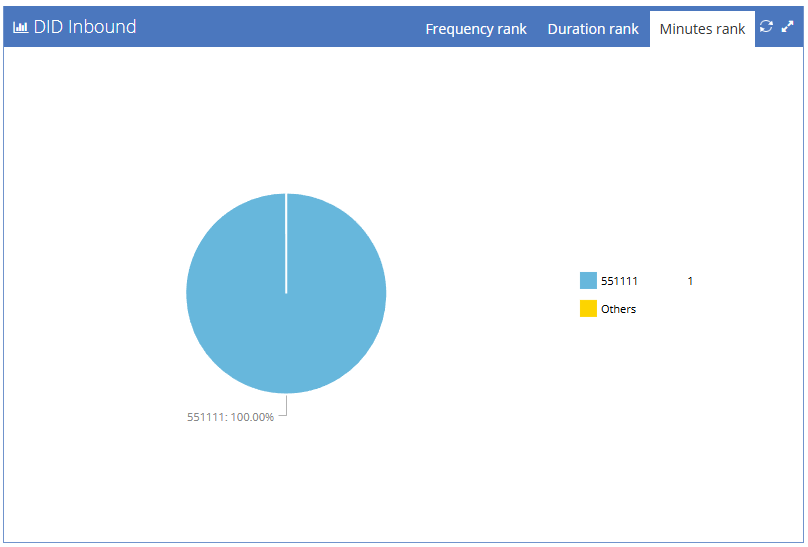
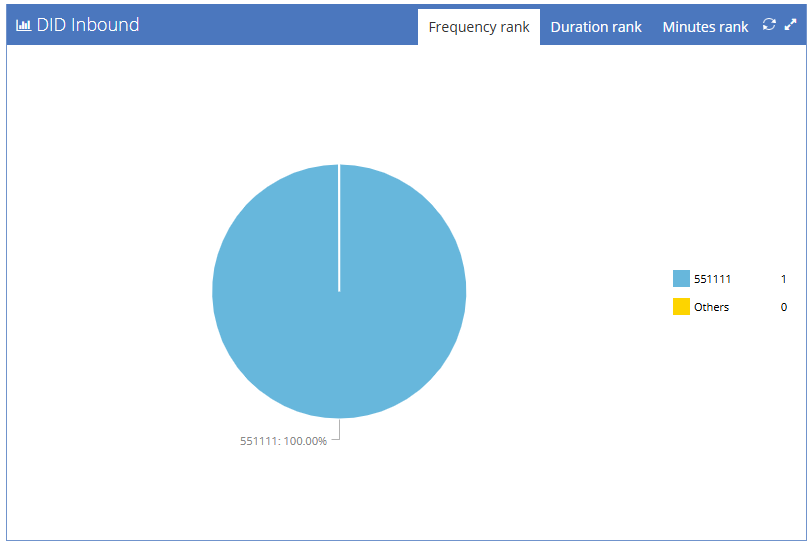
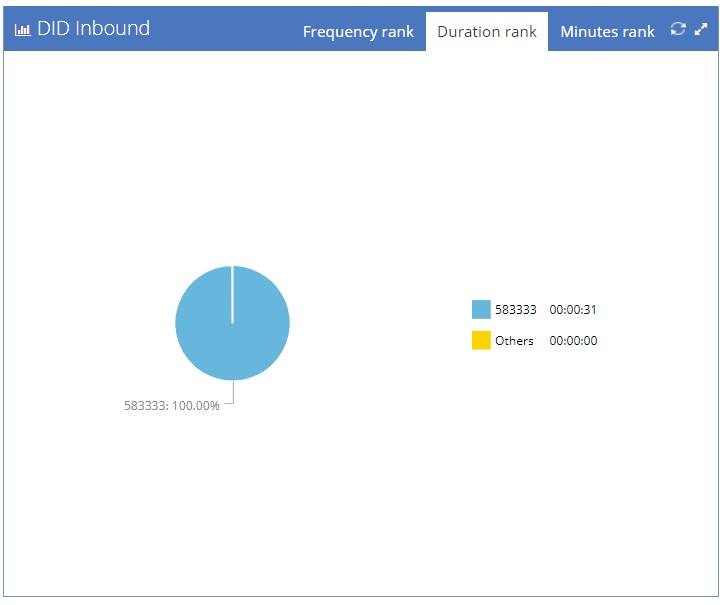
Pie chart of the percentage of did call in.
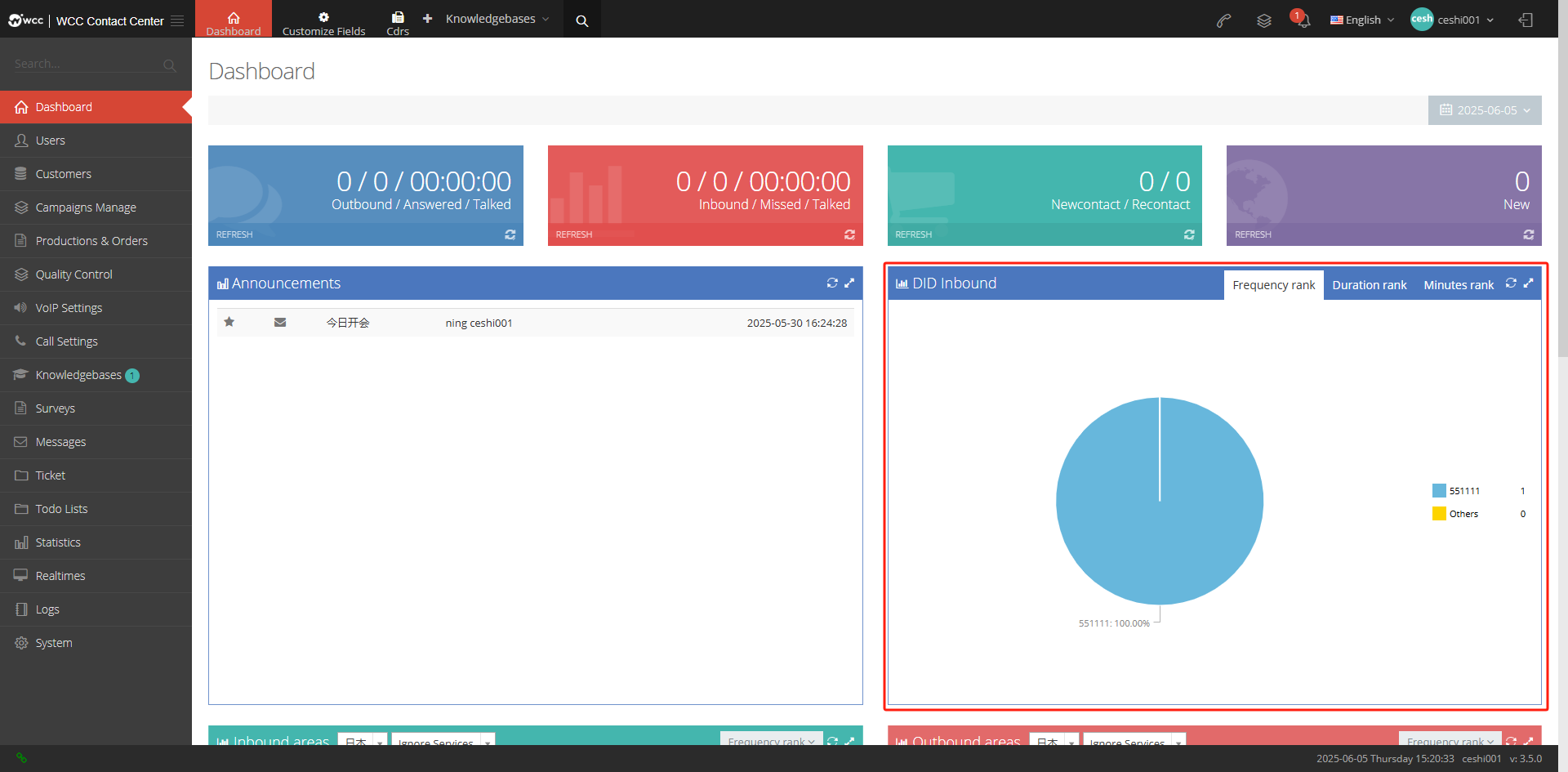
The pie chart of times, duration, and minutes will first display the DID name, and if there is no name, the number will be displayed.
1 Frequency ranking: count the number of calls to the DID number. All numbers that call to the DID will be counted (incoming call is on/not connected), and each incoming call is +1 after the DID number.

2 Duration ranking: Calculate the call duration of the incoming call of the DID number, displayed in minutes, and the counting range is as follows:
① DID to IVR, button transfer to agent: The incoming call time will be counted into the total call time, regardless of whether the button is clicked or not, whether the agent is connected.
② DID to voice broadcast, and then to the agent: The call time will be counted into the total call duration, regardless of whether the agent is connected or not, the total call duration will be counted.
③ DID transfer agent group: The incoming call time will be counted into the total call time, regardless of whether the agent is connected or not, the total call time will be counted.
④ DID to ring group: The call duration will be calculated only after the seat is connected.
⑤ DID transfer conditions, and then transfer to the agent: The call duration will be calculated only after the agent is connected.
⑥ DID transfer seat: The call duration will be calculated only after the seat is connected.
⑦ DID to nickname number: The call duration will be calculated only when the external number is connected.
⑧ DID to hang up: Not counted.
3 Minute ranking: Calculate the number of incoming calls under the did number. Every time the call is incoming and connected, it will +1 after the did number. The call will be incoming to the seat group, voice broadcast and ivr voice menus. If the incoming call is not connected, it will also count.
① DID transfer to IVR, press the button to transfer to the agent: Calling +1.
② DID Go to voice broadcast, and then transfer to the agent: Calling +1.
③ DID is transferred to the agent group: Call +1.
④ DID is transferred to ringing group: The agent is connected +1, and it will not be calculated if it is not connected.
⑤ DID transfer condition to the agent: The agent is connected +1, and it will not be calculated if it is not connected.
⑥ DID to seat: The seat is connected +1, and it will not be calculated if it is not connected.
⑦ DID to external number: The seat is connected +1, and it will not be calculated if it is not connected.
⑧ DID steering hang up: Not counted.